PC Hardware
Bluetooth Headphones Won't Connect to Your PC: How to Fix It
Written by Free Tech Support Editorial Team · Updated
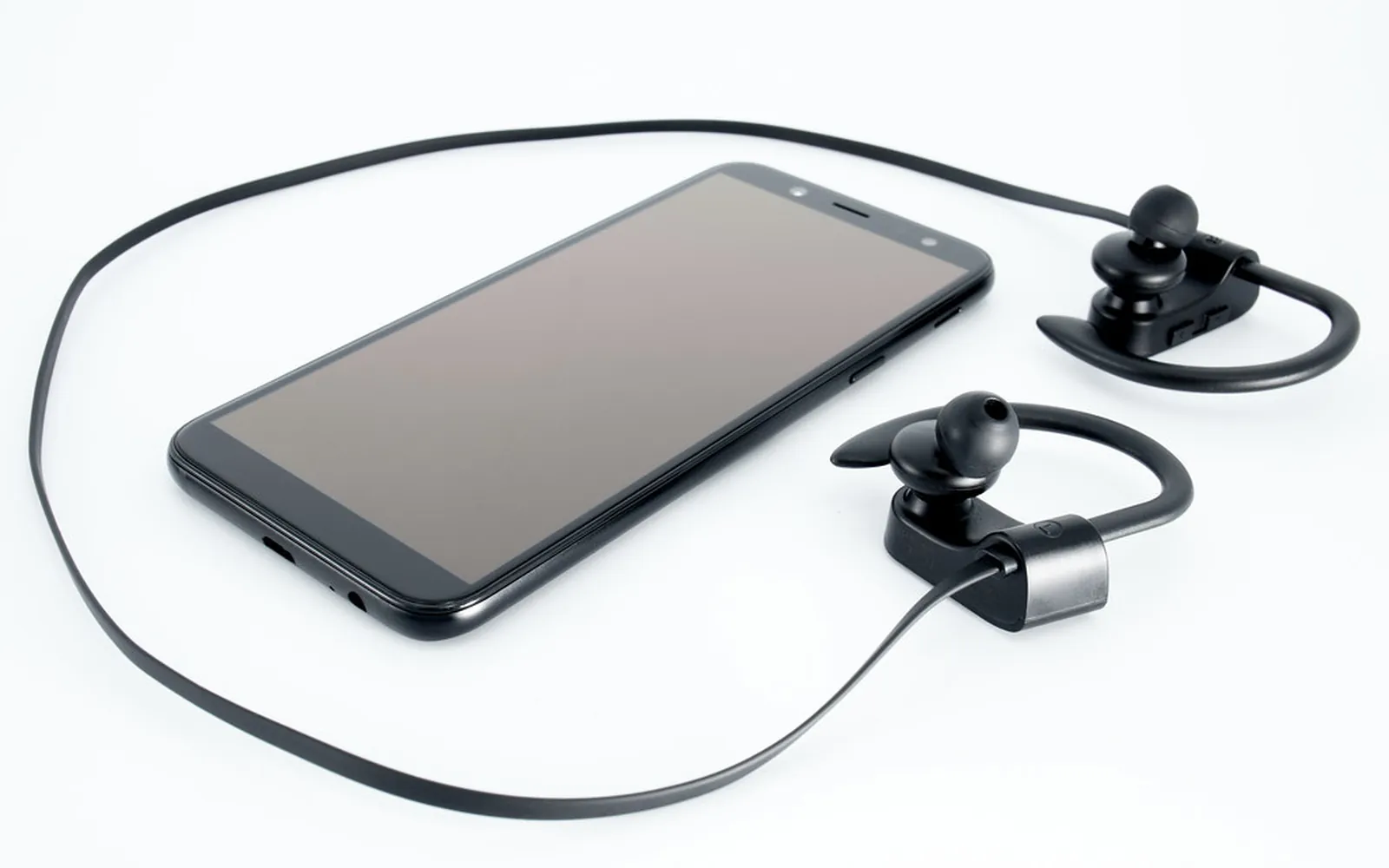
Wireless headphones that work perfectly with your phone can be stubborn with a computer. When Bluetooth headphones are not connecting to a Windows PC, the cause is usually simple: they are still busy with your phone, they are not in pairing mode, or Windows has a stale pairing. This guide walks through the fixes in the order most likely to work, then covers the “connected but no sound” and “sounds terrible on calls” problems.
This is an independent guide for Windows 11 and any headphone brand; for warranty issues, use the headphone maker’s own support site.
1. Disconnect the headphones from your phone
Most headphones connect to one device at a time, and they automatically reconnect to the last one they used, usually your phone. Turn off Bluetooth on your phone (or tablet) for a moment, or disconnect the headphones in its Bluetooth settings. Some models support two connections at once (“multipoint”), but even then a third device may be refused.
2. Turn on Bluetooth in Windows
Press Windows key + A to open Quick Settings and make sure the Bluetooth button is on and Airplane mode is off. You can also check Settings > Bluetooth & devices. If there is no Bluetooth option at all, jump to step 8.
3. Put the headphones into pairing mode
New pairings only work when the headphones are discoverable.
- Over-ear and on-ear headphones: usually hold the power or Bluetooth button for several seconds until a light flashes quickly (often blue and red) or a voice says “pairing”.
- Earbuds: often put both buds in the case, leave the lid open and hold the button on the case. AirPods have their own steps, covered in how to connect AirPods to a Windows PC.
Check the maker’s manual if you are not sure; methods vary. Pairing mode times out after a minute or two, so pair promptly.
4. Pair them in Windows
- Go to Settings > Bluetooth & devices.
- Select Add device, then Bluetooth.
- Select your headphones when they appear and confirm.
If they do not appear, in Settings > Bluetooth & devices > Devices, set Bluetooth devices discovery to Advanced so Windows lists every device it finds. Keep the headphones within a couple of metres of the PC.
5. Remove the old pairing and start fresh
If the headphones are listed but say Paired without connecting, or connect then drop immediately:
- In Settings > Bluetooth & devices > Devices, select the three dots next to the headphones and choose Remove device.
- Reset the headphones’ pairing memory. Many models do this by holding the power button for 10 seconds or more, or a combination of buttons; the manual gives the exact method.
- Restart the PC.
- Put the headphones back in pairing mode and add them again as in step 4.
6. Connected but no sound
Windows may still be sending audio to the speakers or a monitor.
- Press Windows key + A, select the arrow next to the volume slider, and choose your headphones.
- Or go to Settings > System > Sound and pick them under Output.
- Check the app’s own audio settings too; video call apps choose their speaker and microphone separately.
Our guide to no sound from your computer covers the volume mixer and driver fixes if there is still silence.
7. Poor quality during calls
When an app turns on the headphones’ microphone, Bluetooth switches to a hands-free mode that supports two-way audio but with much lower sound quality. Music suddenly sounds flat and tinny during calls; that is expected. To keep high-quality sound, choose your PC’s built-in microphone or a USB microphone as the input in the call app, and the headphones only as the output. See microphone not working in Windows for input settings.
8. Update the Bluetooth driver and check the service
- Right-click Start and open Device Manager.
- Expand Bluetooth. Right-click the adapter (often Intel, Realtek, MediaTek or Qualcomm) and choose Update driver. If it has a warning icon, or Bluetooth broke after an update, try Properties > Driver > Roll Back Driver.
- Get the latest Bluetooth driver from your PC maker’s support site if Windows finds nothing.
- Press Windows key + R, type
services.msc, and make sure Bluetooth Support Service is running.
Also run Settings > System > Troubleshoot > Other troubleshooters > Bluetooth.
9. Reduce drop-outs and interference
If audio cuts in and out:
- Stay within a few metres of the PC with nothing thick between you.
- Plug USB 3 devices and hubs into ports away from the Bluetooth antenna, or use a short USB extension for a Bluetooth dongle.
- Charge the headphones; low battery causes drop-outs.
- If your Wi-Fi uses 2.4 GHz heavily, switching the PC to 5 GHz Wi-Fi can help; see 2.4 GHz vs 5 GHz.
Headphones keep jumping to another device
If your headphones keep connecting to your phone, tablet or TV instead of the PC, they are reconnecting to whichever device they used last or whichever wakes first. Remove the headphones from devices you no longer use them with, or turn Bluetooth off on the phone while you use the PC. Some headphone apps from the maker let you choose a preferred device or turn multipoint on or off.
Still not working?
Test the headphones with another device. If they fail everywhere, reset them to factory settings using the maker’s instructions or contact the maker. If other Bluetooth devices also fail on this PC, see Bluetooth won’t pair, which covers adapters and pairing in general. Browse more in the hardware section.
Frequently asked questions
Why won't my Bluetooth headphones connect to my laptop?
The most common reasons are that the headphones are still connected to a phone or tablet, they are not in pairing mode, an old pairing record is damaged, or the PC's Bluetooth is off or needs a driver update.
How do I put my headphones in pairing mode?
It varies by model, but usually you hold the power or Bluetooth button for several seconds until a light flashes quickly or you hear a pairing prompt. Earbuds often enter pairing mode when you hold a button on the case or on both buds. Check the maker's manual.
My headphones are connected but sound still comes from the speakers. Why?
Windows has not switched the output. Press Windows key + A, select the arrow next to the volume slider and choose your headphones, or set them under Settings > System > Sound > Output.
Why does audio sound bad when I join a call?
When an app uses the headphones' microphone, Bluetooth switches to a hands-free mode with lower audio quality. Using the PC's built-in or a USB microphone for calls keeps the headphones in high-quality mode.
Bluetooth is missing from Settings. What do I do?
Check that Airplane mode is off, restart the PC, and look in Device Manager under Bluetooth for a missing or failed adapter. Reinstall the Bluetooth driver from the PC maker's support site if needed.
Sources
Free Tech Support Editorial Team
Editorial team
The Free Tech Support editors write and update these guides from the official documentation of Microsoft, Apple, Google and device makers. We are an independent site with no phone line and no paid support service.