PC Hardware
How to Connect AirPods to a Windows PC (and Fix Common Problems)
Written by Free Tech Support Editorial Team · Updated
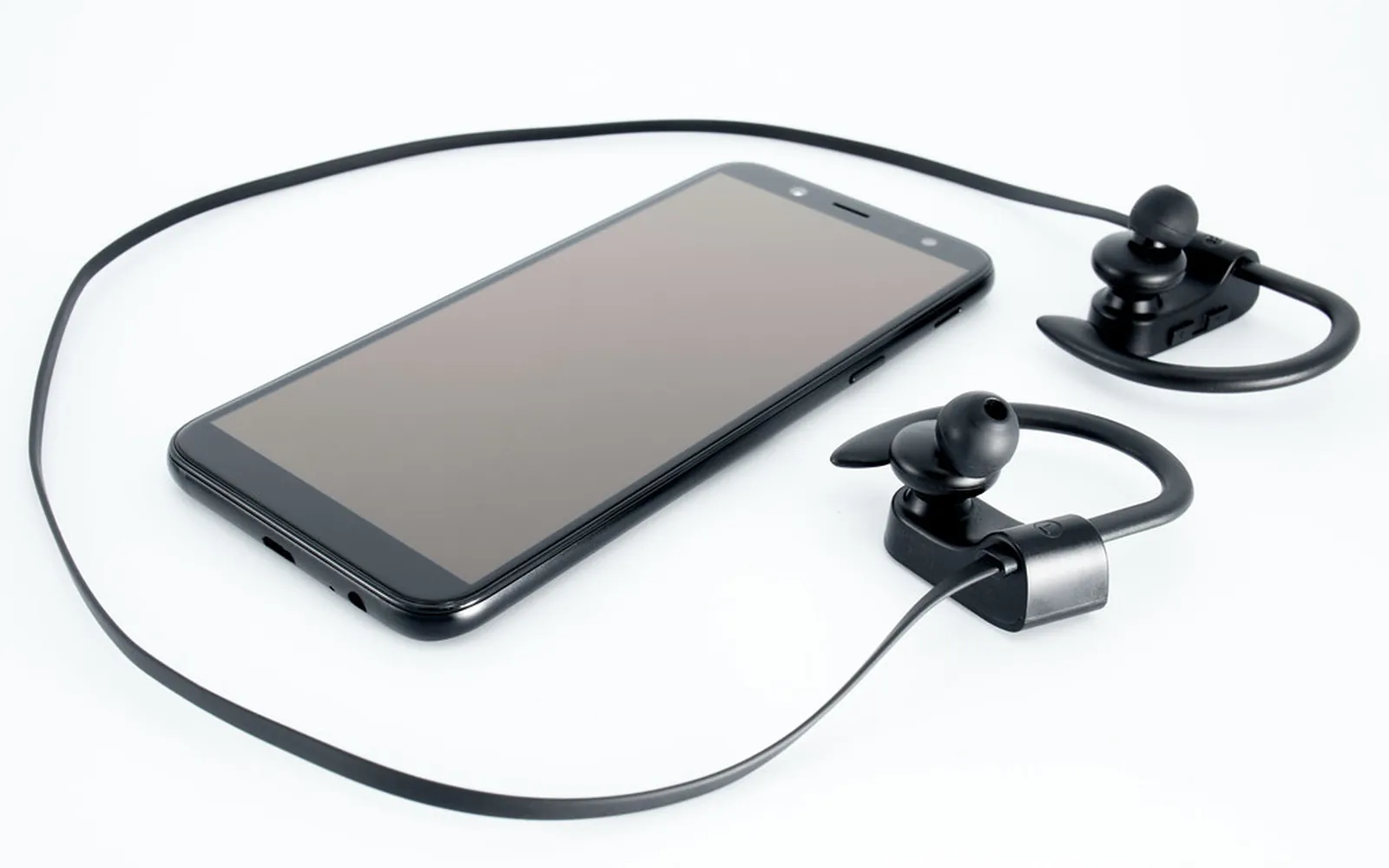
AirPods are designed around iPhones, but they are ordinary Bluetooth headphones underneath. That means you can connect AirPods to a Windows PC or laptop in about a minute and use them for music, videos and calls. This guide covers pairing on Windows 11, the extra step that trips most people up (putting the AirPods into pairing mode), how to fix poor call quality and dropouts, and which features simply do not work on Windows.
This is an independent guide, not affiliated with Apple or Microsoft. For warranty or repair questions, use Apple’s own support site.
What you need
- A Windows 11 or Windows 10 computer with Bluetooth. Almost all laptops have it; many desktops do not. If you cannot find a Bluetooth switch in Settings > Bluetooth & devices, a small USB Bluetooth adapter adds it.
- AirPods with some charge, in their charging case.
Step 1: Put your AirPods into pairing mode
Simply opening the case does not make AirPods visible to a PC the way it does with an iPhone. You must put them into pairing mode. According to Apple’s instructions:
- AirPods (1st, 2nd or 3rd generation) and AirPods Pro (1st or 2nd generation): with both earbuds in the case and the lid open, press and hold the small round setup button on the back of the case for about 5 seconds, until the status light flashes white.
- AirPods 4, AirPods 5 and AirPods Pro 3: open the case with the earbuds inside, hold it near the computer and double-tap the front of the case, so the light flashes white.
- AirPods Max: press and hold the listening mode button for about 5 seconds, until the light flashes white.
A flashing white light means they are ready to pair. Keep the lid open.
Step 2: Pair them in Windows 11
- Open Settings > Bluetooth & devices and make sure Bluetooth is on.
- Select Add device, then Bluetooth.
- Wait a few seconds for your AirPods to appear (they show the name you gave them, for example “Sam’s AirPods Pro”). Select them.
- When Windows says the device is ready, select Done.
On Windows 10 the path is Settings > Devices > Bluetooth & other devices > Add Bluetooth or other device.
Step 3: Make sure sound goes to the AirPods
Windows usually switches audio automatically. If sound still comes from the speakers, press Windows key + A to open Quick Settings, select the arrow next to the volume slider, and choose your AirPods. If you see two entries for them, pick the one that is not labelled “Hands-Free”; that one gives the better stereo sound. Our guide to no sound from the computer covers other output problems.
Reconnecting later
Once paired, you do not need to repeat the setup. Take the AirPods out of the case near the PC; if they do not connect by themselves, open Settings > Bluetooth & devices and select Connect under the AirPods. If they connected to your iPhone instead, turn off Bluetooth on the phone for a moment or disconnect the AirPods there, then select Connect on the PC.
Why calls sound muffled, and how to fix it
This is the most common complaint. When Teams, Zoom or another app turns on the AirPods microphone, Bluetooth switches from the high-quality listening mode to a two-way “hands-free” mode. Music and voices suddenly sound flat and tinny. It is a limit of how Bluetooth headsets work on many PCs, not a fault in your AirPods.
Fixes:
- In the meeting app’s audio settings, set the speaker to your AirPods but the microphone to the laptop’s built-in microphone or a USB headset. The AirPods then stay in the better listening mode.
- In Settings > System > Sound, under Input, make sure the AirPods “Hands-Free” microphone is not selected as the default if you do not want it used.
- For video calls specifically, see Zoom microphone or camera not working and microphone not working in Windows.
If the AirPods will not pair or keep disconnecting
Work through these in order:
- Remove and pair again. In Bluetooth & devices, select the three dots next to the AirPods, choose Remove device, then repeat steps 1 and 2.
- Charge them. Put both earbuds in the case and charge for a while; a low earbud often drops out.
- Restart Bluetooth. Turn Bluetooth off and on in Quick Settings, or restart the PC.
- Reset the AirPods. Follow the reset steps for your model on Apple’s AirPods support site; the method differs between models with and without a setup button. After a reset they must be paired again with every device.
- Update the Bluetooth driver. See updating device drivers safely.
- Reduce interference. USB 3 devices, Wi-Fi routers and metal desks near the PC’s Bluetooth antenna can cause dropouts. Move closer or plug a USB Bluetooth adapter into a front port.
Our general guides to Bluetooth headphones that won’t connect and Bluetooth that won’t pair go deeper on Windows Bluetooth problems.
Using AirPods with more than one device
Many people use the same AirPods with an iPhone and a work laptop. That works, but it is manual. When you want to switch to the PC, disconnect the AirPods on the phone (or turn the phone’s Bluetooth off briefly), then select Connect in Windows. To switch back, disconnect them in Windows first. If the AirPods keep jumping back to the phone during a call, turn off Bluetooth on the phone for the length of the call.
For meetings, it is worth testing once before an important call: open Settings > System > Sound, play something, and speak into the microphone you plan to use to check the input level bar moves.
What does not work on Windows
AirPods on a PC behave like a good pair of generic Bluetooth earbuds. Expect these limits:
- No Siri and no “Hey Siri” voice commands.
- No automatic switching between the PC and your iPhone; you switch manually.
- No Spatial Audio settings or AirPods settings menu. Changing the name, the press-and-hold actions or other options needs an iPhone, iPad or Mac.
- No firmware updates from Windows. Updates install through an Apple device.
- Battery levels may not show, or may show only roughly, in Windows.
On AirPods Pro, the press-and-hold control on the stem can usually still switch between noise cancellation and Transparency, because that setting is stored on the AirPods.
A note on fake “AirPods” listings
Very cheap “AirPods” sold on marketplaces are often counterfeits. They may still pair with Windows, but sound, battery life and safety can be poor. Buy from reputable sellers, and read our guide to spotting fake online stores.
More guides on headphones, monitors and other devices are in the hardware section.
Frequently asked questions
Can you connect AirPods to a Windows laptop?
Yes. AirPods are standard Bluetooth headphones, so any Windows laptop or desktop with Bluetooth can use them for audio and calls. Some Apple-only extras, such as Siri, are not available.
Why are my AirPods not showing up on my PC?
They are probably not in pairing mode. Keep them in the open case and hold the setup button (or double-tap the front of the case on newer models) until the light flashes white, then search again in Windows.
Why does my AirPods audio sound bad on Zoom or Teams?
When an app uses the AirPods microphone, Bluetooth switches to a hands-free mode that lowers sound quality. Choose your PC's built-in or a USB microphone as the input in the app to keep the higher-quality audio.
Do I need to pair AirPods again every time?
No. After the first pairing, open the case near the PC and select Connect on the AirPods entry in Bluetooth & devices if they do not connect automatically.
How do I update AirPods firmware without an iPhone?
Firmware updates are installed through Apple devices, so a Windows PC cannot update AirPods. If you have access to an iPhone, iPad or Mac, keep the AirPods charging near it and the update installs on its own.
Sources
Free Tech Support Editorial Team
Editorial team
The Free Tech Support editors write and update these guides from the official documentation of Microsoft, Apple, Google and device makers. We are an independent site with no phone line and no paid support service.