Phones & Tablets
SIM Card Not Detected: How to Fix "No SIM" on iPhone and Android
Written by Free Tech Support Editorial Team · Updated
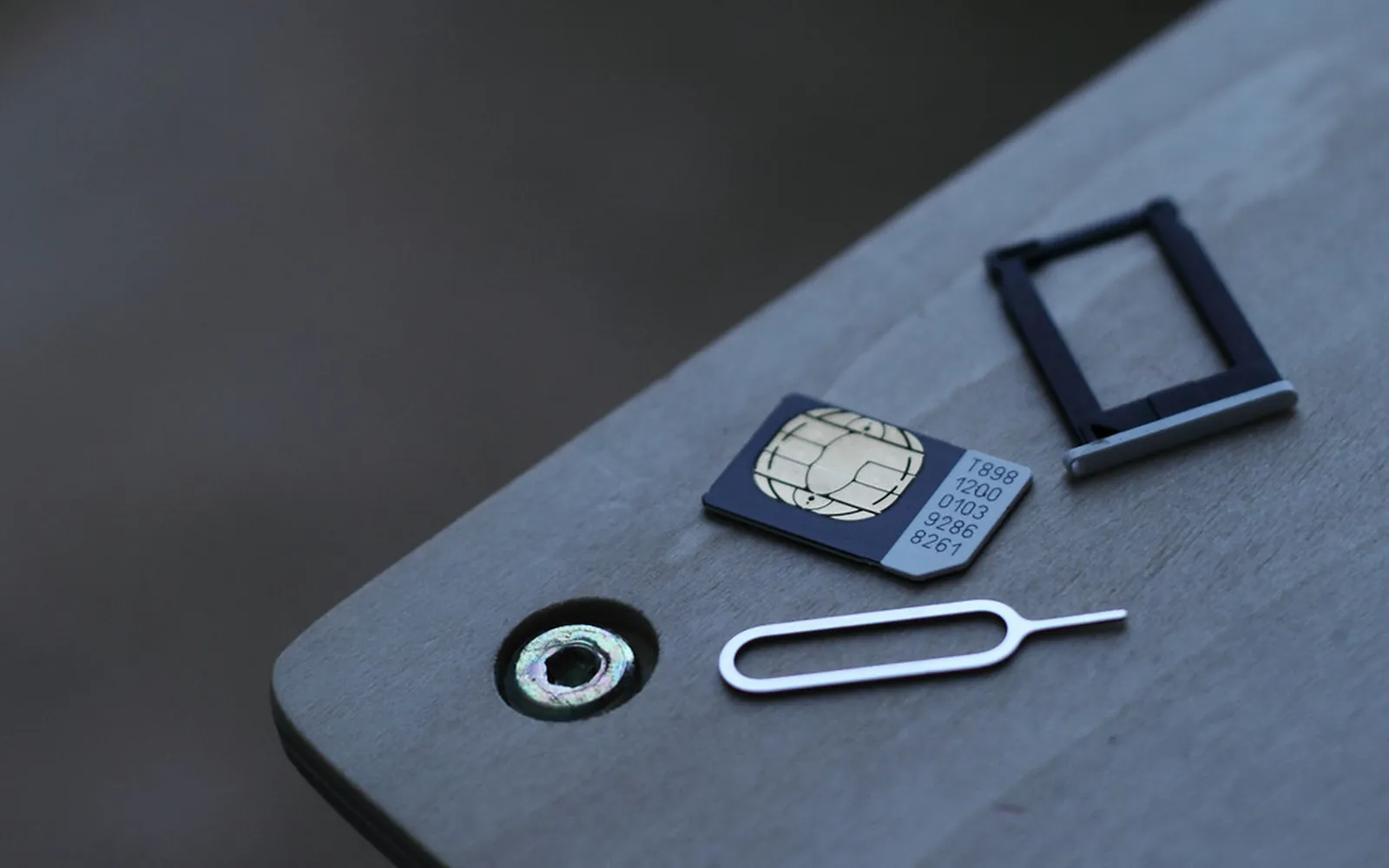
You pick up your phone and the corner where the signal bars should be says No SIM, Invalid SIM or No SIM card inserted. Calls, texts and mobile data all stop at once. A SIM card not detected error looks serious, but in most cases it comes down to a loose or dirty card, a line the carrier has switched off, or a software hiccup. This guide works through the fixes in order, from the quickest to the ones that need your carrier, for iPhone and Android phones.
This is an independent guide and is not affiliated with Apple, Google, Samsung or any carrier. For account problems, your carrier’s own support channels are the right place.
What the error means
Your SIM (or eSIM) is what tells the mobile network which account and phone number belong to your phone. When the phone cannot read it, or the network rejects it, you get one of these messages:
| Message | What it usually means |
|---|---|
| No SIM / No SIM card inserted | The phone cannot see a SIM at all: loose, dirty or damaged card, or a reader fault |
| Invalid SIM | The phone reads the card but it is not accepted: locked phone, deactivated SIM or account issue |
| SIM not provisioned | The SIM is new and not yet activated on the carrier’s side |
| No service with SIM shown | The SIM is fine but there is no usable signal; see mobile data not working |
Knowing which message you see helps you skip steps that do not apply.
1. Restart the phone
Turn the phone off completely rather than choosing Restart, wait about 30 seconds, then turn it back on. Google’s Pixel help suggests this exact approach for SIM and connection problems. A full power cycle makes the phone read the SIM again from scratch, and it clears many errors that appear after an update or after the phone has been in a weak signal area. You can also try turning Airplane mode on for 15 seconds and off again.
2. Take the SIM out and put it back
If the phone was dropped, sat in a tight pocket or recently had the SIM swapped, the card may have shifted.
- Power the phone off.
- Push the ejector tool (or a straightened paper clip) into the small hole beside the tray until it pops out. Some older Android phones have the slot under the back cover or beside the microSD card.
- Take the SIM out and look at the gold contacts. If they are dirty, wipe them gently with a dry, soft, lint-free cloth. Do not use liquids, erasers or anything sharp.
- Check the card for cracks or bends. A damaged SIM needs replacing by your carrier.
- Put the SIM back in the tray the right way round (the cut corner lines up with the tray) and push the tray in until it sits flush.
- Turn the phone on.
Use the tray that came with the phone. A tray from a different model, or one that is bent, can stop the contacts touching. If the phone has recently been wet, do not keep reinserting the SIM; follow our phone got wet guide first.
3. Check the SIM is switched on in settings
Phones with two SIMs, or with a physical SIM and an eSIM, let you turn each line on or off. A line that has been switched off shows as inactive.
- Android (Pixel and most phones): go to Settings > Network & internet > SIMs, tap your carrier and make sure Use SIM is on. Google notes that a greyed-out carrier with a No SIM message means the SIM is missing or inactive. On Samsung phones the setting is under Settings > Connections > SIM manager.
- iPhone: go to Settings > Cellular (Mobile Data in some regions) and check that the line is turned on. If you have two lines, check that the right one is chosen for calls and data.
4. Update carrier settings and the phone’s software
Carriers send small settings files that tell the phone how to connect, and older software can have SIM bugs that a later update fixes.
- iPhone: connect to Wi-Fi, then go to Settings > General > About. If a carrier settings update is available, a prompt appears after a few seconds; tap Update. Then check Settings > General > Software Update. Apple lists both steps in its own No SIM guidance.
- Android: go to Settings > System > System update (on Samsung, Settings > Software update).
If the update will not install, see phone won’t update.
5. Check the line with your carrier
If the SIM looks fine and the message is Invalid SIM, the problem is often on the account side. Ask your carrier (through its app, website or a store, not a number from a search ad) whether:
- the line is active and the bill is up to date;
- the number has been moved to a new SIM or an eSIM, which deactivates the old card;
- the SIM was reported lost or stolen;
- a new SIM has been activated yet (new cards can take a short while).
Carriers can also check whether your phone model is allowed on your plan.
6. Is the phone locked to another carrier?
A carrier-locked phone shows Invalid SIM or a similar message when you insert a SIM from a different carrier. On iPhone, go to Settings > General > About and look at Carrier Lock; Apple says it shows No SIM restrictions when the phone is unlocked. On Android there is no single place to check; inserting a SIM from another carrier or asking the original carrier is the reliable test. Only the carrier that locked the phone can unlock it, and each carrier has its own conditions. If you bought the phone second-hand, ask the seller which carrier it came from.
7. The swap test: SIM, phone or account?
This quick test tells you where the fault is:
- Put your SIM in another phone that is unlocked or on the same carrier. If it works there, the SIM and account are fine and the problem is your phone.
- Put another SIM in your phone. If that works, your SIM or line is the problem; ask your carrier for a replacement SIM.
- If your SIM fails everywhere, it is the SIM or the account. If every SIM fails in your phone, the SIM reader or another part inside the phone needs repair.
eSIM shows No SIM or is missing
An eSIM cannot be reseated. Restart the phone, check that the eSIM line is turned on (steps in section 3) and do not delete the eSIM unless your carrier tells you to, because you may need the carrier to reissue it. If you have just moved to a new phone, the transfer may not have finished: Pixel phones offer Settings > Network & internet > SIMs > Add SIM > Transfer SIM from another device, and iPhone offers a similar transfer during setup. If a transfer fails, your carrier can issue a new eSIM. Our set up a new iPhone or Android guide covers the rest of the move.
When it is the phone
If the swap test points at the phone, a reset of network settings is worth one try before a repair. On Pixel it is Settings > System > Reset options > Reset mobile network settings; on iPhone, Settings > General > Transfer or Reset iPhone > Reset > Reset Network Settings. This removes saved Wi-Fi passwords but not your data. After that, contact the phone maker or a reputable repair shop; a damaged SIM reader is a hardware repair. Before handing the phone over, back it up.
Stay safe while your SIM is down
A phone that suddenly loses service without being dropped or changed can also be a sign that someone has moved your number to their own SIM (a SIM swap). If you also get emails about account changes you did not make, contact your carrier straight away from another phone, and review our guide to recovering a hacked account. While the SIM is out of action, Wi-Fi still works for internet apps, but carrier features such as Wi-Fi calling need an active SIM line, so they come back only once the SIM is fixed. More phone fixes are in the mobile section.
Frequently asked questions
Why does my phone suddenly say No SIM?
The most common causes are a SIM that has shifted in its tray after a drop, a dirty or worn SIM contact, a line that the carrier has suspended or moved to a new SIM, and a software glitch that a restart clears. Less often, the SIM reader inside the phone is damaged.
What is the difference between No SIM and Invalid SIM?
No SIM usually means the phone cannot see a SIM at all. Invalid SIM means it can read the card but the carrier or the phone will not accept it, for example because the phone is locked to a different carrier or the SIM has been deactivated.
Can a SIM card stop working?
Yes. SIM cards can wear out, crack or be deactivated when your carrier issues a replacement or you move your number to an eSIM. Your carrier can test the SIM and replace it.
How do I know if my iPhone is carrier locked?
Go to Settings > General > About and look at Carrier Lock. If it says No SIM restrictions, the iPhone is unlocked. A locked phone only accepts SIMs from the carrier it is locked to.
My phone uses an eSIM. What should I do?
There is no card to reseat, so restart the phone, check the eSIM line is turned on in your SIM or cellular settings and contact your carrier. They can reissue or transfer the eSIM to your phone.
Sources
Free Tech Support Editorial Team
Editorial team
The Free Tech Support editors write and update these guides from the official documentation of Microsoft, Apple, Google and device makers. We are an independent site with no phone line and no paid support service.