Phones & Tablets
Wi-Fi Calling Not Working: How to Fix It on iPhone and Android
Written by Free Tech Support Editorial Team · Updated

Wi-Fi calling lets your phone make and receive ordinary calls and texts over a Wi-Fi network, which is a lifesaver in basements, rural homes and buildings with thick walls. With Wi-Fi calling not working, calls fail, the switch is greyed out, or the phone simply never seems to use it. This guide explains how Wi-Fi calling decides when to switch on, how to turn it on properly on iPhone and Android, and how to fix the most common problems, from carrier support to router settings.
This is an independent guide and is not affiliated with Apple, Google, Samsung or any carrier.
How Wi-Fi calling works (and why it seems not to)
Wi-Fi calling is a carrier service, not an app. Your carrier must offer it, your plan must include it, and your phone model must be supported. When all three are true, the phone uses Wi-Fi for calls only when it judges Wi-Fi to be the better option. If your mobile signal is decent, the phone may keep using it, and you will not see the Wi-Fi label. That is normal, not a fault.
It is also different from calling apps such as FaceTime Audio or WhatsApp. Those work on any internet connection, while Wi-Fi calling keeps your normal phone number and shows up for the person you call like any other call.
1. Check that your carrier and plan support it
Look on your carrier’s website or in its app for Wi-Fi calling. Some prepaid plans, older plans or business lines do not include it, and some carriers only support it on phones they have approved. Google’s Pixel help notes that not all carriers support Wi-Fi calling and that fees may apply. If the switch is missing entirely from your phone’s settings, this is the most likely reason. Your SIM must also be active; if the phone shows No SIM, fix that first with our SIM card not detected guide.
2. Turn it on correctly
iPhone
- Open Settings > Cellular (Mobile Data in some regions). If you have two lines, choose the line.
- Tap Wi-Fi Calling and turn on Wi-Fi Calling on This iPhone.
- Tap Enable when asked, and enter or confirm your address for emergency services.
Apple says that when Wi-Fi calling is available you will see Wi-Fi after your carrier name in the status bar. To use it on an iPad or Mac signed in to the same Apple Account, also turn on Allow Calls on Other Devices on the same screen.
Android
- Pixel: go to Settings > Network & internet > SIMs, tap your carrier, then Wi-Fi calling, and turn on Use Wi-Fi calling. Google suggests placing a test call afterwards.
- Samsung and other Android phones: the switch is usually in the Phone app settings or in the connections or SIM settings, and often as a Quick Settings tile. Menu names differ between makers and carriers, so search for “Wi-Fi calling” in the Settings search bar.
3. Enter the emergency address
In the US and Canada, carriers generally need an address on file for emergency calls made over Wi-Fi. If you skip this step or the address cannot be verified, the switch may turn itself off or stay greyed out. Enter the address where you use the phone most, exactly as it appears on your mail, and update it when you move. Apple notes that emergency calls use mobile service when it is available, and may use Wi-Fi calling when it is not.
4. Update carrier settings and software
- iPhone: connect to Wi-Fi and open Settings > General > About. A carrier settings prompt appears if one is waiting; tap Update. Then install any iOS update in Settings > General > Software Update.
- Android: go to Settings > System > System update and install anything available. Carrier features are sometimes updated through system updates.
Restart the phone afterwards. If an update will not install, see phone won’t update.
5. Test it properly
Because the phone prefers mobile signal when it is good, the most reliable test is:
- Turn on Airplane mode.
- Turn Wi-Fi back on (it can be used in Airplane mode) and join your network.
- Wait a minute, then call a friend or your own voicemail.
If the call connects, Wi-Fi calling works and the earlier problem was simply that the phone preferred mobile signal. Turn Airplane mode off when you finish.
6. Check the Wi-Fi network itself
Wi-Fi calling needs a steady connection rather than a fast one. Problems on the Wi-Fi side include:
- Weak signal in the room. Calls break up or drop. Move closer to the router or see boost a weak Wi-Fi signal.
- Wi-Fi connected but no internet. The phone will not use a network that cannot reach the internet. See no internet but Wi-Fi connected.
- Busy or slow network. Large downloads or streaming on other devices can make calls choppy. Our guide to slow internet explains how to check.
- Public or work Wi-Fi. Hotel, cafe, school and office networks with sign-in pages or strict firewalls often block the connection Wi-Fi calling uses. Test at home or on a phone hotspot from someone else.
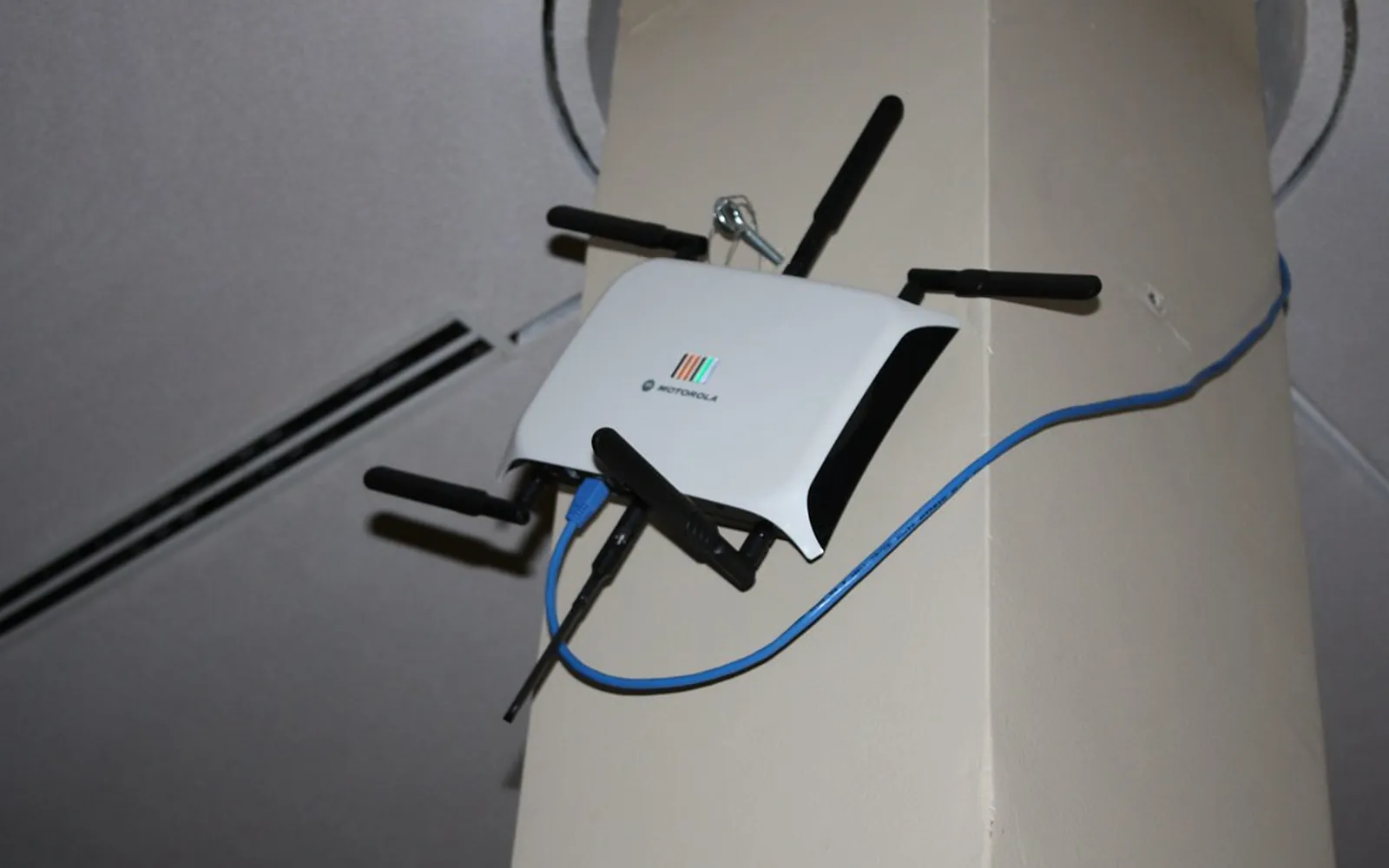
- Router needs a restart or update. Restart it the right way with our router restart guide, and install any firmware update from the router’s admin page.
Some routers have a setting called SIP ALG that can interfere with internet calling. If you can reach your router’s settings and your carrier recommends changing it, that is worth trying; otherwise leave advanced settings alone.
7. Security apps and private network apps
Apps that route all traffic through another server (private network or “secure connection” apps) and some security apps can stop Wi-Fi calling from connecting. Pause the app and try a test call. If that fixes it, look in the app for a setting to exclude calls or local traffic, or keep it off when you need Wi-Fi calling.
8. Calls drop when you leave Wi-Fi
When you walk out of Wi-Fi range during a call, the phone should hand the call over to the mobile network. Whether it does so smoothly depends on the carrier and the phone. If calls keep dropping, finish important calls before leaving, and make sure VoLTE (calling over 4G/5G) is turned on where your phone has that setting; Pixel phones show it under Settings > Network & internet > SIMs.
9. Reset network settings as a last step
If none of the above works, reset the network settings. On iPhone: Settings > General > Transfer or Reset iPhone > Reset > Reset Network Settings. On Pixel: Settings > System > Reset options > Reset mobile network settings. You will need to re-enter Wi-Fi passwords. Then turn Wi-Fi calling on again and re-enter the emergency address. If it still fails on several Wi-Fi networks, ask your carrier to check the feature on your line; carrier provisioning problems can only be fixed on their side.
For problems with mobile data rather than calls, see mobile data not working. More phone guides are in the mobile section.
Frequently asked questions
Why is Wi-Fi calling greyed out on my iPhone?
Usually because your carrier or plan does not offer it, the line is not active, or carrier settings are out of date. Check Settings > General > About for a carrier settings update, update iOS and ask your carrier whether Wi-Fi calling is enabled on your account.
How do I know Wi-Fi calling is working?
On iPhone, Apple says Wi-Fi appears after your carrier name in the status bar when Wi-Fi calling is in use. On Android, a Wi-Fi calling icon or label appears in the status bar or the call screen, depending on the phone.
Does Wi-Fi calling cost extra?
Many carriers include it at no extra charge for calls within the country, but rules differ, especially for international calls. Google notes that fees may apply, so check with your carrier.
Can I call emergency services over Wi-Fi?
Apple says emergency calls use mobile service when it is available and may use Wi-Fi calling when it is not. That is why carriers ask for an emergency address when you turn the feature on; keep it up to date.
Does Wi-Fi calling use my mobile data?
No. The call travels over the Wi-Fi network you are connected to. If Wi-Fi is weak, the phone may hand the call over to the mobile network.
Sources
Free Tech Support Editorial Team
Editorial team
The Free Tech Support editors write and update these guides from the official documentation of Microsoft, Apple, Google and device makers. We are an independent site with no phone line and no paid support service.