Wi-Fi & Internet
How to Set Up a New Router — Step by Step
Written by Free Tech Support Editorial Team · Updated
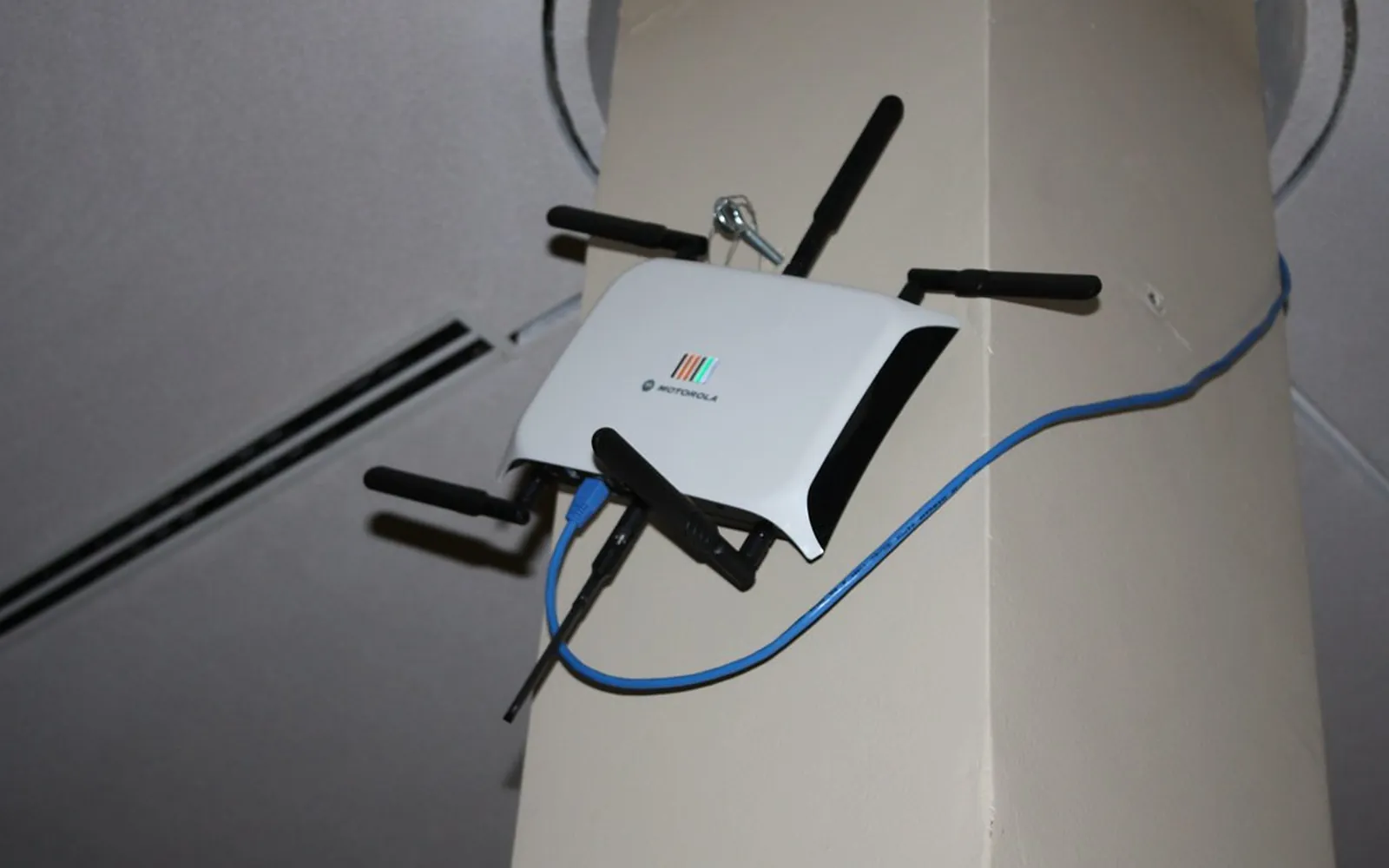
Setting up a new router is simpler than most people expect. This guide covers the essential steps whether you received an upgrade from your ISP or bought one yourself.
What You Will Need
- Your new router and its power adapter
- An Ethernet cable (usually included in the box)
- Your existing modem (if your ISP uses a separate one) or the router replaces a combo unit
- A laptop or PC to do the initial configuration
Step 1: Connect the Hardware
- If you have a separate modem, plug one end of an Ethernet cable into the modem’s LAN port and the other into the router’s WAN or Internet port (usually a different colour from the other ports).
- Plug the router into power.
- Wait about 60 seconds for it to finish booting — the power and Wi-Fi lights should become steady.
Step 2: Connect Your Computer to the Router
Either plug an Ethernet cable from your computer into one of the router’s numbered LAN ports, or connect to the default Wi-Fi network. The default Wi-Fi name and password are on the sticker on the bottom or back of the router.
Step 3: Log Into the Router Admin Page
Open a web browser and type the router’s admin address (also on the sticker — typically 192.168.1.1 or a custom URL). Log in with the default admin username and password from the sticker.
Step 4: Run the Setup Wizard
Most modern routers launch a setup wizard automatically on first login. Follow it — it will ask you to:
- Set your internet connection type (most home connections use DHCP; your ISP will tell you if you need PPPoE and give you credentials).
- Set a new Wi-Fi name (SSID) for 2.4GHz and 5GHz.
- Set a strong Wi-Fi password.
- Change the router admin password — always do this.
Step 5: Update the Firmware
Before you do anything else, check for a firmware update in the router’s admin panel (usually under Administration, Advanced, or System). Installing the latest firmware fixes security vulnerabilities and can improve performance.
Step 6: Reconnect Your Devices
Connect each device using the new Wi-Fi name and password you set. If you kept the same name and password as your old router, most devices will reconnect automatically.
Related guides
If this did not solve it, these guides cover the problems that most often come with it: How to Set Up a Guest Wi-Fi Network Safely, How to Change Your Wi-Fi Name and Password, Router Not Working or No Lights. You can also browse every guide in the Wi-Fi internet section.
Frequently asked questions
Do I need to call my ISP when I get a new router?
Usually no, if you are keeping your existing modem. If your ISP provided a modem/router combo unit and you are replacing the whole thing, you may need to call them to register the new device's MAC address or get PPPoE credentials. Check with your ISP first.
The setup wizard says to choose a connection type — what should I pick?
Most broadband connections (cable, most fibre) use DHCP — just select that and the router will get settings automatically. DSL connections often use PPPoE and will need a username and password from your ISP. If you are unsure, your ISP's welcome letter or a quick call to their support line will confirm it.
Sources
Free Tech Support Editorial Team
Editorial team
The Free Tech Support editors write and update these guides from the official documentation of Microsoft, Apple, Google and device makers. We are an independent site with no phone line and no paid support service.