Wi-Fi & Internet
How to Log In to Router Settings on Any Brand of Router
Written by Free Tech Support Editorial Team · Updated
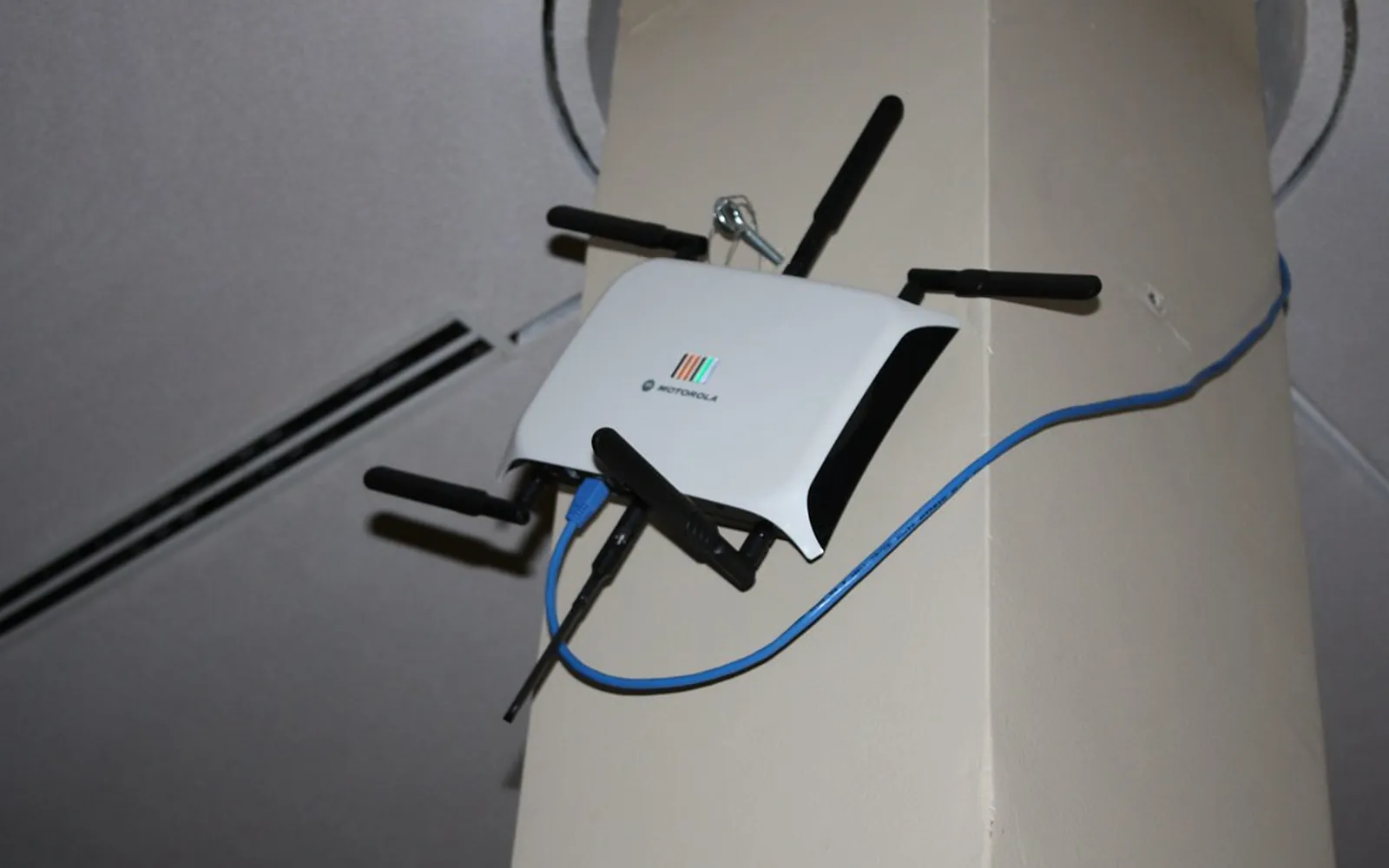
Knowing how to log in to your router is useful the moment you want to change your Wi-Fi password, see which devices are connected, set up a guest network or install a firmware update. Every router has a small settings website built in. You reach it by typing the router’s local address into a browser and signing in with an admin password. This guide shows how to find both, on any brand, and what to do if the password has been lost.
This is an independent guide. It is not run by any router maker or internet provider. If your equipment is rented from your provider, its own support site or app is the place for account and warranty questions.
Before you start: connect to the router
You can only reach the settings page from a device that is connected to that router, either over Wi-Fi or with an Ethernet cable. If the Wi-Fi itself is the problem, a cable from the router to a laptop is the most reliable way in. If your internet is down, the login page usually still works, because it lives on the router, not on the internet.
Step 1: Find your router’s IP address
The router’s address is called the default gateway or router address. Common examples are 192.168.0.1, 192.168.1.1 and 10.0.0.1, but do not guess: check it on a connected device.
Windows 11
- Right-click the Start button and choose Terminal (or search for Command Prompt).
- Type
ipconfigand press Enter. - Under your Wi-Fi or Ethernet adapter, note the number next to Default Gateway.
You can also open Settings > Network & internet, select Wi-Fi or Ethernet, then the network’s properties. Some versions show the gateway there; ipconfig always does.
Mac
Open System Settings > Wi-Fi, select Details next to the network you are connected to, then choose TCP/IP. The address next to Router is the one you need.
iPhone and iPad
Open Settings > Wi-Fi, tap the blue i next to your network, and look for Router under the IPv4 section.
Android
Open Settings, go to Wi-Fi (on Pixel phones this is under Network & internet > Internet; on Samsung Galaxy phones under Connections > Wi-Fi), tap the gear or the network name, and look for Gateway or Router. On some phones it is hidden under Advanced or View more.
Step 2: Open the login page
Type the address into the browser’s address bar (not the search box), for example 192.168.1.1, and press Enter. Some routers also accept a friendly name printed on the label, such as a local web address from the manufacturer.
If your browser shows a warning that the connection is not private or the certificate is not trusted, that is common for home routers, because they use a self-signed certificate on your local network. It is reasonable to continue when the address you typed is your own router’s address. Our guide on the “Your connection is not private” warning explains when such warnings matter and when they do not.
If nothing loads
- Check that you typed the gateway address exactly, with dots, not commas.
- Make sure the device is on the router’s network, not on mobile data or a VPN.
- If you have a separate modem and router, you may be reaching the wrong box; the gateway address always points to the device that hands out your addresses.
- Restart the router as described in our guide to restarting a router correctly and try again.
Step 3: Sign in with the admin password
The router asks for an admin username and password. This is not the same as your Wi-Fi password, although some providers print both on the same label.
- Check the label. Most routers have a sticker on the bottom or back with the admin login, the default Wi-Fi name and the Wi-Fi password.
- Check your setup notes. If you or a family member set the router up, the admin password may have been changed then.
- Check the app. Many internet providers and router makers now manage settings through a phone app. If your router came with one, it may be the main way in, and the web page may offer fewer options.
Avoid “default router password” lists on random websites. They are often out of date, and some are full of ads that try to push you toward paid “support” numbers.
Forgot the admin password? Factory reset as a last resort
If the label password does not work and nobody knows the new one, the only way back in is a factory reset. Most routers have a small recessed Reset button; holding it with a paper clip for the time stated in the manual restores the original settings.
Be aware of what that means:
- Your Wi-Fi name and password go back to the ones on the label, so every phone, laptop, printer and smart device has to reconnect.
- Custom settings such as port forwarding, parental controls and guest networks are erased.
- With some provider gateways, the internet connection itself has to be activated again, which may need the provider’s app or support.
If the equipment belongs to your internet provider, check its support site before resetting. After a reset, our guide to reconnecting a printer after a Wi-Fi change helps with the most awkward device.
What to change once you are in
Once you are signed in, a few changes make the biggest difference:
- Change the admin password if it is still the default. Use a long, unique password and store it in a password manager.
- Set a strong Wi-Fi password and name. Our guide on changing your Wi-Fi name and password walks through it.
- Choose WPA3 or WPA2 security. Avoid WEP and open networks. If older devices cannot connect with WPA3, a WPA2/WPA3 mixed mode is a sensible middle ground.
- Update the firmware. Look for a Firmware, Update or Administration section, or turn on automatic updates if the router offers them.
- Turn off features you do not use, such as remote management from the internet and WPS.
For a fuller checklist, see how to secure your home Wi-Fi network, and if you are replacing the router altogether, follow setting up a new router step by step. More network help is in the Wi-Fi and internet section.
A word on scams
Router access is valuable to criminals, because it lets them redirect your browsing or watch your traffic. Never give your router password, or remote access to your computer, to someone who calls, texts or emails you out of the blue, even if they claim to be from your internet provider or a well-known tech company. If you need help, contact your provider yourself using the number on your bill or the official app, not a number from a pop-up or a search ad.
Frequently asked questions
What is the default IP address to log in to a router?
There is no single address. Common ones are 192.168.0.1, 192.168.1.1 and 10.0.0.1, but the reliable way is to look up the default gateway on a device that is connected to the router.
What if I forgot my router admin password?
Try the password on the router's label first. If it was changed and nobody remembers it, a factory reset restores the label password, but it also erases your Wi-Fi settings, so you will need to set them up again.
Can I log in to my router from my phone?
Yes. Connect the phone to the router's Wi-Fi, find the router address in the Wi-Fi details, and type it into the phone's browser, or use your provider's or router maker's app.
Why does my browser say the router login page is not secure?
Many routers use a self-signed certificate or plain HTTP on the local network, so browsers warn about it. That is normal for your own router's address, but never enter your router password on a page you reached from an email or a search ad.
Is it safe to let someone else into my router settings?
Only someone you trust and who you contacted yourself. Never give router or computer access to a caller who contacts you out of the blue, even if they say they are from your internet provider.
Sources
Free Tech Support Editorial Team
Editorial team
The Free Tech Support editors write and update these guides from the official documentation of Microsoft, Apple, Google and device makers. We are an independent site with no phone line and no paid support service.
