Wi-Fi & Internet
Forgot Your Wi-Fi Password? How to Find It on Windows, Mac and Phones
Written by Free Tech Support Editorial Team · Updated
You need to connect a new phone, a visitor’s tablet or a smart TV, and nobody can remember the Wi-Fi password. Before you reset the router and set everything up again, check whether a device that is already connected can show it. If you forgot your Wi-Fi password, one of the methods below will almost always find it in a couple of minutes, starting with the easiest.
This is an independent guide, not affiliated with Microsoft, Apple, Google or any router maker or internet provider.
Method 1: A connected Windows 11 PC
- Open Settings (Windows key + I) and go to Network & internet > Wi-Fi.
- Select your network’s properties (the network name at the top, or Hardware properties).
- Next to View Wi-Fi security key, select View. The password appears in a small window.
For a network the PC used before but is not connected to now, go to Network & internet > Wi-Fi > Manage known networks, select the network, and look for the same option.
Windows 10: open Control Panel > Network and Sharing Center, click your Wi-Fi connection, select Wireless Properties, open the Security tab and tick Show characters.
Method 2: The command line (any network the PC has used)
- Select Start, type cmd and open Command Prompt.
- To list saved networks, type
netsh wlan show profilesand press Enter. - To see one password, type the command below, replacing NetworkName with the exact name, and press Enter:
netsh wlan show profile name="NetworkName" key=clear - Look for Key Content under Security settings. That is the password.
Method 3: A Mac
- Recent macOS: open System Settings > Wi-Fi, click the three dots or Details next to the network (or open Advanced for known networks), and choose Copy Password. Paste it into a note to read it. On the newest versions, the Passwords app also has a Wi-Fi section.
- Keychain Access: search for the network name, double-click it and tick Show password. You will need your Mac’s password.
Method 4: An iPhone or Android phone
- iPhone: open Settings > Wi-Fi, tap the info (i) button next to your network, then tap Password and unlock with Face ID, Touch ID or your passcode.
- Android (Pixel and most others): open Settings > Network & internet > Internet, tap the gear next to your network and tap Share. After you confirm with your PIN or fingerprint, a QR code appears and, on many phones, the password underneath.
- Samsung Galaxy: open Settings > Connections > Wi-Fi, tap the gear next to the network and tap QR code.
If you only need to get another phone online, you may not need the password at all; see how to share your Wi-Fi password from an iPhone or Android.
Method 5: The router’s sticker
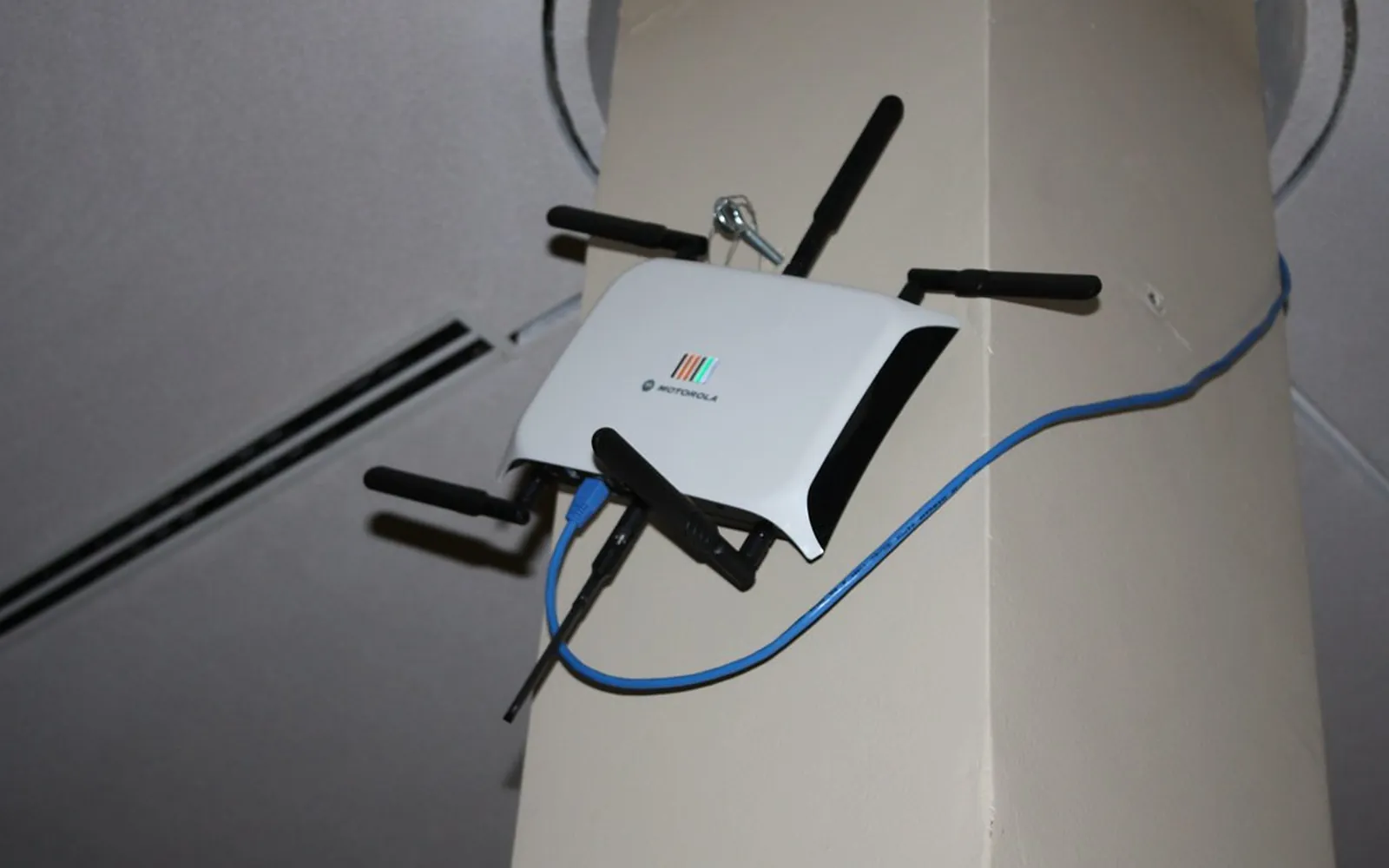
Most routers and provider gateways have a label on the back or bottom with the default network name (SSID) and password. It may be called Wi-Fi key, WPA key, WPA2 key, network key or wireless password. It still works if nobody changed the password when the router was set up. Some providers also print it on a pull-out card.
Method 6: The router’s settings page or app
- Connect a computer to the router with an Ethernet cable if no device is on Wi-Fi.
- Open the router’s settings page in a browser, or open your internet provider’s app. Our guide on how to log in to your router shows how to find the address and admin password.
- Look in Wireless, Wi-Fi or WLAN settings. The password (also called passphrase or pre-shared key) is shown there, sometimes behind a “show” option.
While you are there, you can set a new password you will remember; see how to change your Wi-Fi name and password.
Last resort: reset the router
If no device is connected and you cannot sign in to the router, a factory reset restores the sticker password:
- With the router powered on, press and hold the small Reset button with a paper clip for about 10 seconds.
- Wait several minutes for it to restart.
- Connect using the network name and password on the sticker, then set up your settings again.
A reset erases custom settings such as your Wi-Fi name, guest network and port settings. If your provider manages the router, its app or support website may be a simpler route. Our new router setup guide walks through the setup afterwards.
Keep it from happening again
- Store your Wi-Fi password in a password manager or write it on a card kept somewhere safe at home.
- Set up a guest network for visitors, so you never need to share your main password.
- Keep your network secure with WPA2 or WPA3 and a long password.
Be careful with apps and websites that claim to “recover” or “hack” Wi-Fi passwords. They do not work on properly secured networks and many are malware. Only use your own devices, your router or your provider’s official app. If the network does not appear at all, see Wi-Fi won’t show up.
Frequently asked questions
How do I find my Wi-Fi password on Windows 11?
Open Settings > Network & internet > Wi-Fi, select your network's properties and choose View next to View Wi-Fi security key. You can also use the command netsh wlan show profile name="NetworkName" key=clear and read Key Content.
Can I see my Wi-Fi password on an iPhone or Android?
Yes. On iPhone open Settings > Wi-Fi, tap the info button next to your network and tap Password. On most Android phones open your network's settings and tap Share; the password appears under the QR code after you confirm with your PIN or fingerprint.
Where is the Wi-Fi password on my router?
Most routers have a sticker on the back or bottom showing the default network name and password, often called Wi-Fi key, WPA key, network key or password. It only works if no one has changed it since setup.
I changed the password and forgot it, and nothing is connected. What now?
Log in to the router's settings page with a cable or your provider's app and set a new password. If you cannot log in at all, a factory reset restores the sticker password but erases all your settings.
Is it safe to look up my Wi-Fi password online?
Never enter your router details on a website that offers to recover Wi-Fi passwords. Only use your own devices, the router itself or your internet provider's official app or website.
Sources
Free Tech Support Editorial Team
Editorial team
The Free Tech Support editors write and update these guides from the official documentation of Microsoft, Apple, Google and device makers. We are an independent site with no phone line and no paid support service.