Wi-Fi & Internet
How to Boost Weak Wi-Fi Signal in Far Rooms
Written by Free Tech Support Editorial Team · Updated
Wi-Fi signals weaken as they travel through walls, floors, and interference from appliances. Before buying anything, try repositioning and tuning what you already have.
Improve Router Placement First
Router placement makes an enormous difference. A few rules:
- Place the router as centrally as possible in your home, not in a corner near the front door.
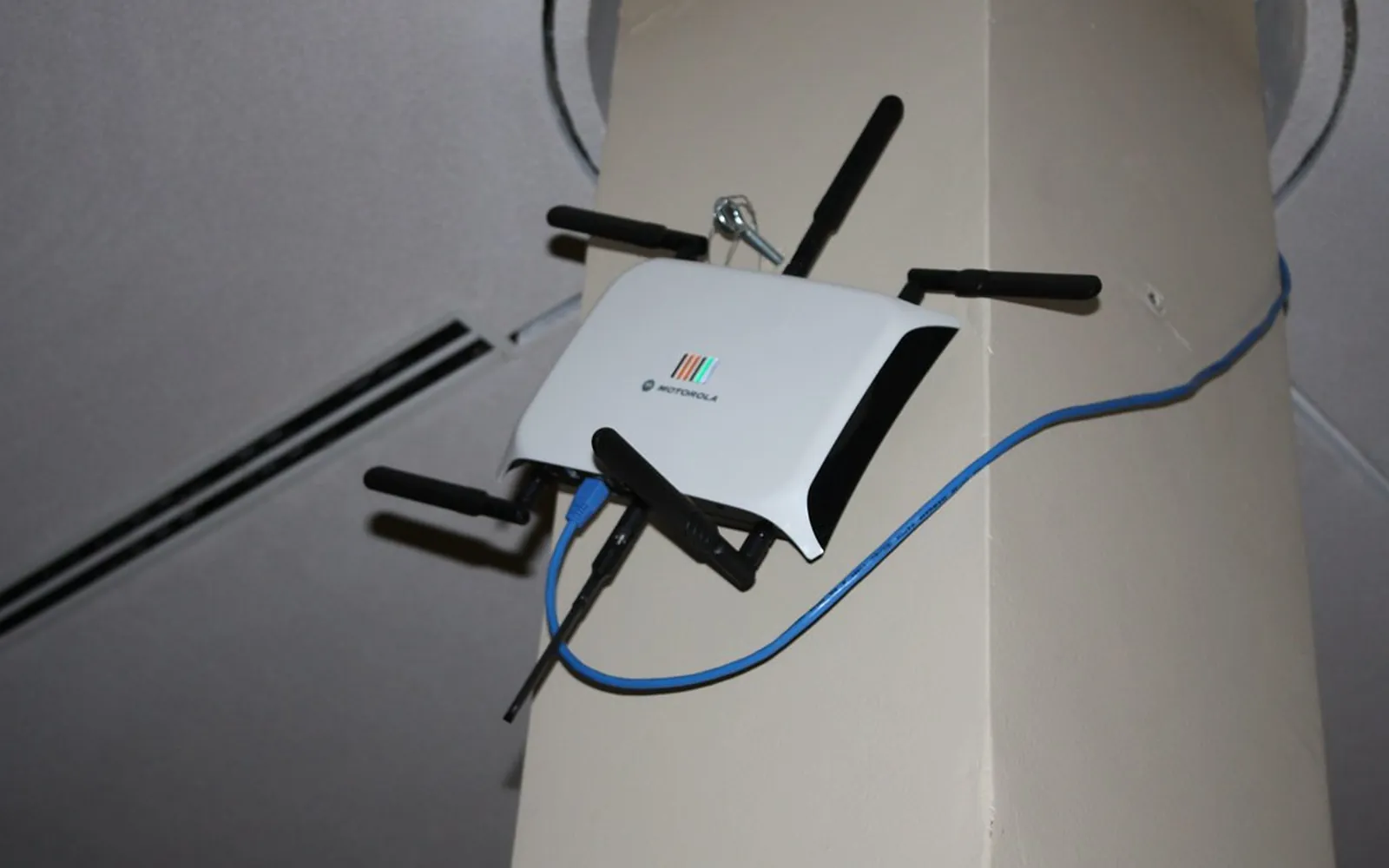
- Put it up high — on a shelf or mounted on a wall — rather than on the floor.
- Keep it away from microwaves, cordless phones, baby monitors, and metal objects.
- Point the antennas vertically (or one horizontal and one vertical for better coverage on multiple floors).
Check Your Router’s Channel and Band
Log into your router admin page. On 2.4GHz, switch to channel 1, 6, or 11 — these do not overlap. On 5GHz, auto-channel selection is usually fine. Too many nearby networks on the same channel can noticeably reduce range and speed.
Option 1: Wi-Fi Range Extender
A range extender (sometimes called a repeater) plugs into a wall socket halfway between your router and the dead zone. It picks up your router’s signal and rebroadcasts it. They are affordable and easy to set up, but they typically halve your bandwidth because they communicate with both the router and your device on the same radio.
Best for: small homes or extending to one or two extra rooms.
Option 2: Powerline Adapters
Powerline adapters use your home’s electrical wiring to carry network traffic. You plug one adapter near the router (connected via Ethernet) and another in the far room. Performance depends on how old and clean your home’s wiring is, but can be excellent.
Best for: older homes where the router cannot physically be moved.
Option 3: Mesh Wi-Fi System
A mesh system replaces your existing router with two or three nodes placed around your home. They communicate with each other on a dedicated backhaul radio, so devices get full-speed access throughout the house. It is the most effective and seamless solution but also the most expensive.
Best for: larger homes, multi-storey buildings, or anyone who has struggled with weak Wi-Fi for years.
Not sure which option suits your home layout?
Related guides
If this did not solve it, these guides cover the problems that most often come with it: “Connected, No Internet” on Wi-Fi, How to Set Up a Guest Wi-Fi Network Safely, Fix ‘Self-Assigned IP’ or ‘Limited Connectivity’ on Windows. You can also browse every guide in the Wi-Fi internet section.
Frequently asked questions
Do Wi-Fi extenders cut my speed in half?
Single-band extenders do, because they use the same radio to receive from the router and transmit to your device. Dual-band extenders are better — they communicate with the router on one band and with your devices on the other. Mesh systems avoid this problem almost entirely.
My router has external antennas — does how I position them matter?
Yes. A single vertical antenna broadcasts in a doughnut shape horizontally around it. If you have two antennas, pointing one vertical and one horizontal typically improves coverage across multiple floors. If you have three antennas, one vertical and two angled at about 45 degrees to each side is a common recommendation.
Sources
Free Tech Support Editorial Team
Editorial team
The Free Tech Support editors write and update these guides from the official documentation of Microsoft, Apple, Google and device makers. We are an independent site with no phone line and no paid support service.