Wi-Fi & Internet
How to Share a Wi-Fi Password From an iPhone or Android Phone
Written by Free Tech Support Editorial Team · Updated
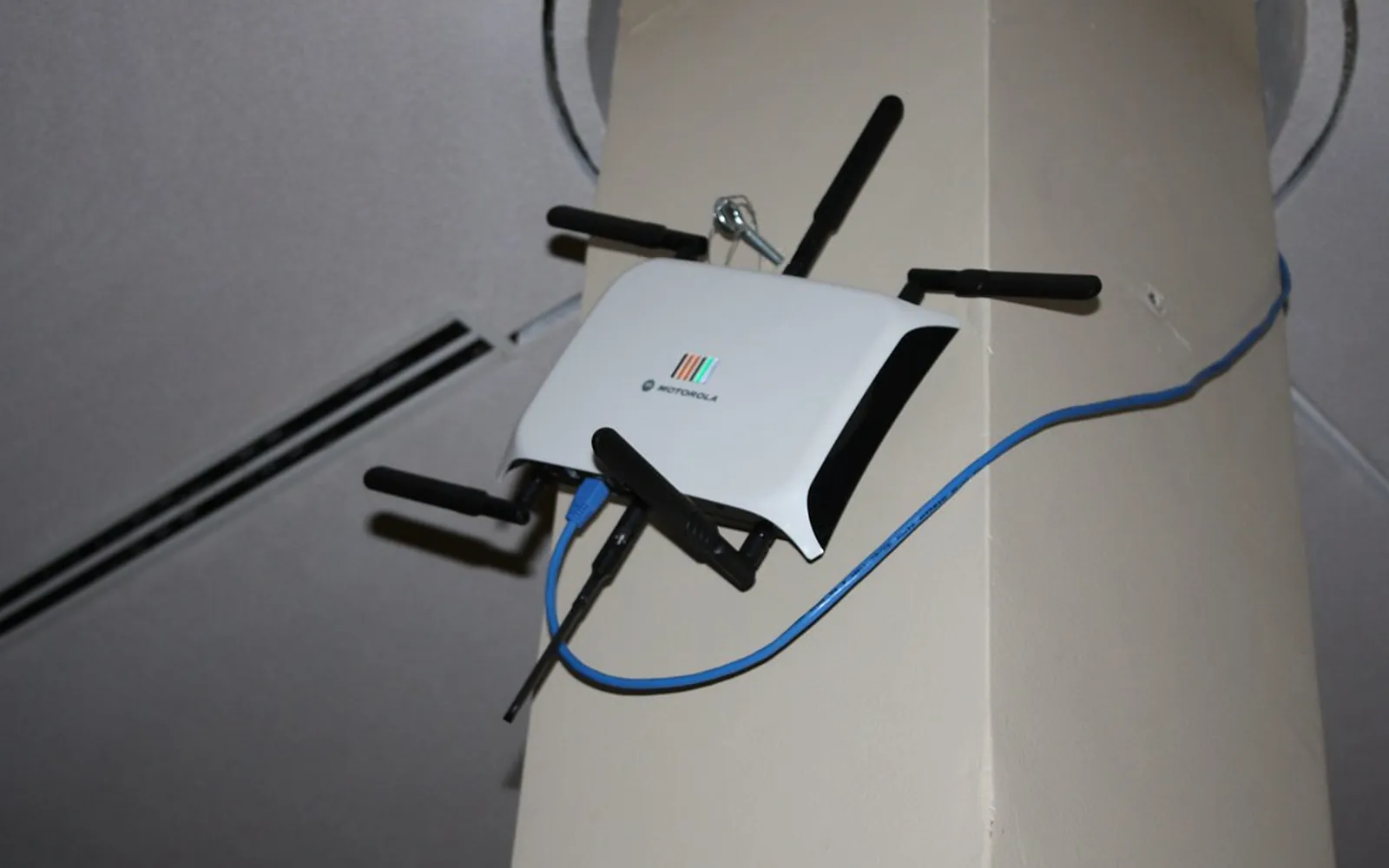
A visitor asks for the Wi-Fi, and the password is a long string of random characters on the back of the router. Instead of reading it out letter by letter, you can share your Wi-Fi password straight from your phone in a few seconds. iPhones can send it to other Apple devices with a single tap, and Android phones can show a QR code that any phone camera can scan. This guide covers both, plus how to share between iPhone and Android and how to keep your main network private.
This is an independent guide, not affiliated with Apple, Google or any phone maker.
iPhone to iPhone, iPad or Mac
Apple devices can pass the password over a short-range connection, without either person seeing it.
Before you start, check:
- Your iPhone is unlocked and connected to the Wi-Fi network you want to share.
- Wi-Fi and Bluetooth are on for both devices.
- Both devices are signed in to an Apple Account, and each person has the other’s Apple Account email address saved in Contacts.
- The devices are close to each other.
Then:
- On the other device, open Settings > Wi-Fi and tap the network name.
- On your iPhone, a Share Password prompt appears. Tap Share Password, then Done.
If the prompt does not appear, lock and unlock your iPhone, move the devices closer, and check the contact details. Restarting both devices fixes most stubborn cases.
See the password on an iPhone
Sometimes you just need to read the password, for example for a laptop, a smart TV or an Android phone.
- Settings: open Settings > Wi-Fi, tap the info (i) button next to your network, then tap Password. Unlock with Face ID, Touch ID or your passcode and the password is shown, with an option to copy it.
- Passwords app: on recent iOS versions, the Passwords app has a Wi-Fi section listing saved networks and their passwords. Depending on your version, it can also show a QR code for the network that another phone can scan.
Android: share with a QR code
Most Android phones can turn your network into a QR code. Anyone can scan it with their phone camera to join, whether they use Android or iPhone.
Pixel and most Android phones:
- Open Settings > Network & internet > Internet.
- Tap the gear icon next to the network you are connected to.
- Tap Share. Confirm with your fingerprint, face or PIN.
- A QR code appears. On many phones the password is also shown in text underneath.
Samsung Galaxy:
- Open Settings > Connections > Wi-Fi.
- Tap the gear next to your connected network.
- Tap QR code at the bottom. Some Samsung models also offer Quick Share to send it to a nearby Galaxy phone.
Joining from the other phone
- iPhone: open the Camera, point it at the QR code and tap the Join Network banner.
- Android: open the Camera or the QR scanner in Settings > Network & internet > Internet (the scan icon next to Add network), scan the code and tap Join or Connect.
Only scan Wi-Fi QR codes from someone you know and trust. A QR code on a poster or in a café can connect you to any network, including a fake one; our guide to QR code scams explains what to watch out for.
Between iPhone and Android
Apple’s nearby sharing only works between Apple devices. To share across platforms:
- From Android to iPhone: show the QR code; the iPhone camera reads it.
- From iPhone to Android: reveal the password in Settings and read or copy it, or show the network QR code from the Passwords app if your iOS version offers it.
- From a Windows laptop: open Settings > Network & internet > Wi-Fi, select your network’s properties and choose View next to View Wi-Fi security key.
If you cannot see the password anywhere, our guide on how to find a forgotten Wi-Fi password lists every place it may be saved, including the router’s sticker and settings page.
Better for visitors: a guest network
Your main Wi-Fi password lets devices see your computers, printers and smart home gadgets. For visitors, short-term renters and smart devices you do not fully trust, a guest network is safer:
- Guests get internet access but not access to your other devices.
- You can share or change the guest password freely without reconnecting all your own devices.
- Many routers let you show the guest network as a QR code on their app or settings page.
See how to set up guest Wi-Fi safely for the steps.
If you have shared the password too widely
If many people know your main password, or you suspect a neighbour is using your connection, change it. Our guide on how to change your Wi-Fi name and password explains how, and securing your home Wi-Fi network covers the other settings worth checking at the same time. After a change, every device must reconnect with the new password, so share it with your own devices first.
When sharing does not work
If a device has the right password but still will not connect, the problem is usually with that device rather than the password. See iPhone won’t connect to Wi-Fi or Android won’t connect to Wi-Fi for the step-by-step fixes.
Frequently asked questions
How do I share my Wi-Fi password from my iPhone to another iPhone?
Unlock your iPhone and make sure it is connected to the network, with Wi-Fi and Bluetooth on. The other person selects the network on their device. A Share Password prompt appears on your iPhone; tap it. You need each other's Apple Account email in your contacts.
How do I share Wi-Fi from an iPhone to an Android phone?
Nearby sharing does not work across platforms. Reveal the password on your iPhone in Settings > Wi-Fi by tapping the info button next to the network and then the password, or create a Wi-Fi QR code, and let the Android phone use it.
How do I share my Wi-Fi with a QR code on Android?
Open Settings > Network & internet > Internet (Samsung: Settings > Connections > Wi-Fi), tap the gear next to your network and tap Share or QR code. Confirm with your fingerprint or PIN, and the other person scans the code with their camera.
Why is the Share Password prompt not appearing on my iPhone?
Both devices must be unlocked, close together, signed in to an Apple Account, with Wi-Fi and Bluetooth on, and each must have the other's Apple Account email in Contacts. Also make sure your iPhone is actually connected to that network.
Is it safe to share my Wi-Fi password?
With family it is fine. For visitors, a guest network is safer because they never learn your main password. Change the main password if you have shared it widely or think someone unwanted is using it.
Sources
Free Tech Support Editorial Team
Editorial team
The Free Tech Support editors write and update these guides from the official documentation of Microsoft, Apple, Google and device makers. We are an independent site with no phone line and no paid support service.
