Wi-Fi & Internet
Smart TV Won't Connect to Wi-Fi: Fixes That Work on Most TVs and Streaming Sticks
Written by Free Tech Support Editorial Team · Updated
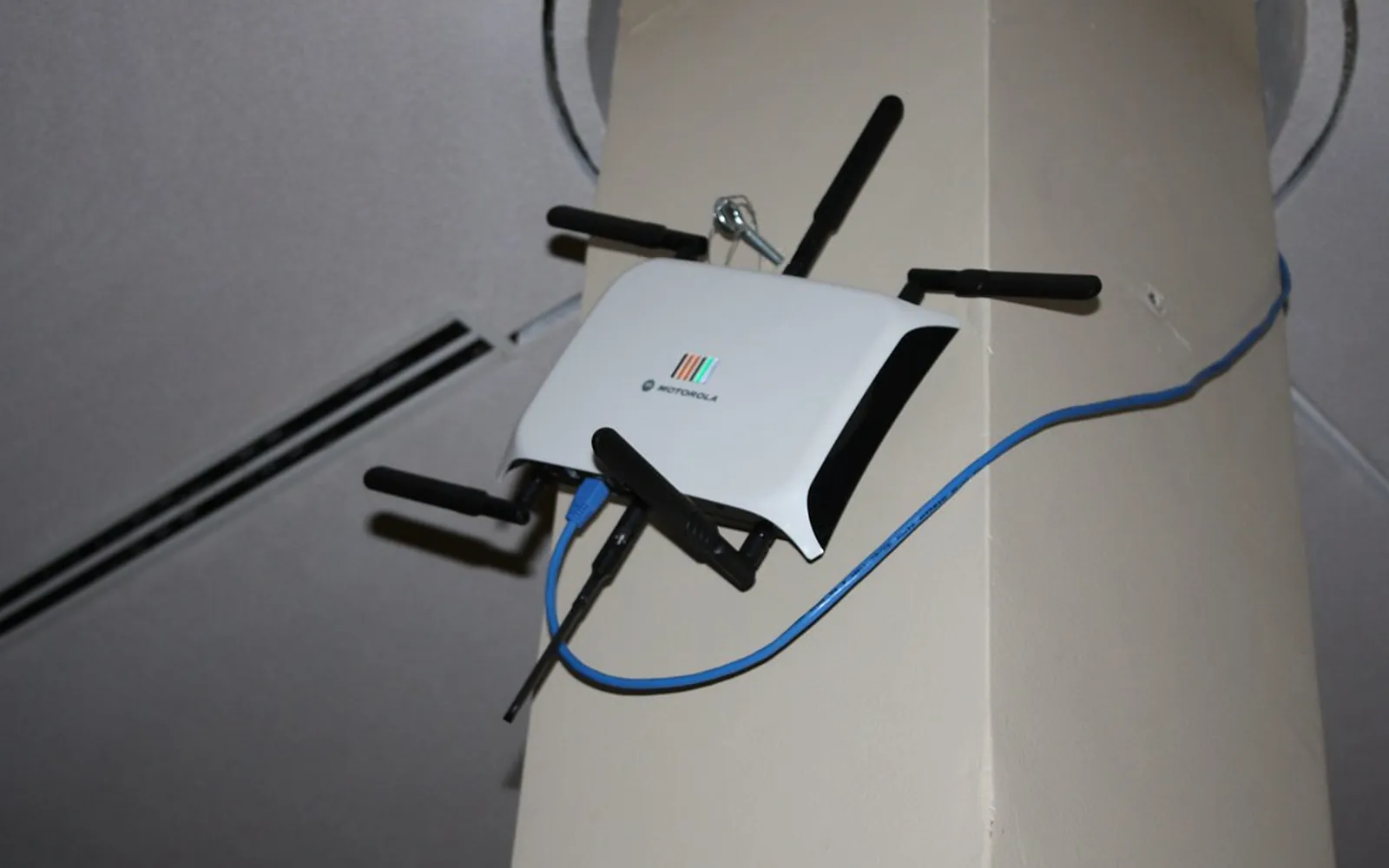
When a smart TV won’t connect to Wi-Fi, the cause is usually one of a handful of things: the router needs a restart, the password was mistyped, the TV cannot use the band or security type your router broadcasts, or a setting on the TV itself is wrong. The fixes below are in the order that solves the most cases fastest. They apply to most smart TVs and streaming sticks; menu names differ between brands, but the settings are almost always under Settings > Network or Settings > General > Network.
This is an independent guide, not affiliated with any TV or streaming-device maker. For warranty repairs, use the maker’s own support site.
1. Check whether the problem is the TV or the internet
Pick up your phone, turn off mobile data, and try to open a website on the same Wi-Fi. If the phone cannot get online either, the problem is your router or your internet service, not the TV. Start with our guide to a router that is not working, or Wi-Fi connected but no internet.
If the phone works and only the TV fails, continue below.
2. Restart the TV properly
Pressing the power button on the remote usually puts a smart TV into standby, not a full restart. Unplug the TV (or the streaming stick) from the wall, wait about a minute, and plug it back in. Many TVs also have a restart option in their system settings. This clears temporary faults in the network chip more reliably than standby.
3. Restart the router
Turn the router off at the wall, wait about 30 seconds, turn it on, and wait until the lights settle, which can take a few minutes. If you have a separate modem, restart the modem first, then the router. Then reconnect the TV.
4. Forget the network and re-enter the password
In the TV’s network settings, select your Wi-Fi network and choose Forget, Remove or a network reset option, then connect again. Type the password slowly. Wi-Fi passwords are case-sensitive, and on-screen keyboards make it easy to pick the wrong character. Most TVs have a “show password” option; use it to check before you confirm. If you are not sure what the password is, see how to find a forgotten Wi-Fi password.
5. Check the Wi-Fi band (2.4 GHz vs 5 GHz)
Many routers broadcast two bands, sometimes under the same name. Some older TVs and some budget streaming devices only support 2.4 GHz, so if your router only offers 5 GHz, or you have turned 2.4 GHz off, the TV will not see the network. Newer TVs that support both may connect better on 5 GHz when they are close to the router. Google’s own help for Google TV suggests using a 5 GHz network where the router supports it, and checking you are on the right band.
Check the TV’s specifications in its manual or settings to see which bands it supports. Our guide to 2.4 GHz vs 5 GHz explains how to see and change the bands on your router.
6. Check the router’s security type
Recent routers may offer WPA3, the newest Wi-Fi security standard. Some older TVs cannot join a WPA3-only network. If your router’s settings allow it, choose WPA2/WPA3 mixed (sometimes called transition mode) so older devices can still connect. Avoid turning security off: an open network is unsafe, and Google TV devices do not show unsecured networks at all. Logging in to your router settings shows how to find these options.
7. Make sure the network is not hidden or filtered
- Hidden network name. If you hid your network name (SSID), the TV will not list it. Look for an “add network” or “other network” option and type the name and password manually.
- Device filters and parental controls. Some routers block new devices, or block devices on a schedule. Check the router’s device list, MAC filtering and parental-control pages for the TV.
- Too many devices. Restarting the router clears old connections; if the problem returns, check the router for a device limit.
8. Fix the date and time on the TV
Streaming apps and the TV’s own update service use secure connections that fail if the TV’s clock is wrong. If the date has reset (for example after a power cut), set date and time to automatic or enter it correctly. This is a common cause of “connected, but apps will not load”.
9. Put IP and DNS settings back to automatic
If anyone has set a fixed IP address or custom DNS server on the TV, set both back to automatic (DHCP). Google’s Google TV help notes that a device on your network that replaces DNS can affect connectivity, and suggests removing it to test. If your whole network uses a custom DNS, our guide to changing DNS servers explains how to switch back.
10. Improve the signal
Wi-Fi weakens through walls, floors, and especially behind a large TV. A streaming stick plugged directly into the back of the TV can get a weak signal; an HDMI extension cable moves it out from behind the screen. Moving the router higher and closer, or adding a mesh point near the TV, helps more than any setting. See how to boost weak Wi-Fi in far rooms.
11. Use an Ethernet cable or update the software
If the TV has an Ethernet port and the router is within reach, a cable is the most reliable connection for streaming. It is also the easiest way to install a pending software update, which may fix a Wi-Fi bug. Some TVs can also update from a USB stick using a file from the maker’s support site.
12. Reset the TV’s network settings, then the TV
Use the TV’s network reset option first; it clears saved Wi-Fi details without removing apps. A full factory reset removes apps, sign-ins and picture settings, so keep it as a last resort. If the TV still cannot see any network at all after a reset, while other devices nearby can, its Wi-Fi hardware may be faulty and the maker’s support or repair service is the next step.
Hotel and public Wi-Fi
Networks that make you accept terms on a sign-in page usually do not work on smart TVs, because the TV cannot display that page. Use a cable if one is provided, or cast from your phone or laptop to the TV instead.
For more connection help, browse the Wi-Fi and internet topic hub.
Frequently asked questions
Why does my TV say it is connected to Wi-Fi but there is no internet?
The TV has joined the router but cannot reach the internet through it. Check that other devices are online, restart the router, set the TV's network settings back to automatic (DHCP and automatic DNS) and check the date and time on the TV.
Why can't my TV see my Wi-Fi network when my phone can?
The TV may only support the 2.4 GHz band or older security settings, the network name may be hidden, or the TV may simply be too far from the router. Check the TV's specifications for supported Wi-Fi bands, and try moving the router or using a mesh point nearer the TV.
Can I connect a smart TV to hotel or public Wi-Fi?
Often not. Networks that need you to accept terms on a sign-in page usually do not work on TVs, and Google TV devices only show secured networks. Use a cable if the hotel provides one, or cast from your phone instead.
Should I factory reset my TV to fix Wi-Fi?
Only as a last resort. A factory reset removes your apps and sign-ins. Try the network reset option in the TV's settings first, which clears only the saved Wi-Fi details.
Will an Ethernet cable fix it?
If the TV has an Ethernet port and the problem is weak or unstable Wi-Fi, yes. It is also a good way to download a software update that may fix the Wi-Fi problem itself.
Sources
Free Tech Support Editorial Team
Editorial team
The Free Tech Support editors write and update these guides from the official documentation of Microsoft, Apple, Google and device makers. We are an independent site with no phone line and no paid support service.
