Wi-Fi & Internet
Ethernet Connected But No Internet: How to Fix a Wired Connection
Written by Free Tech Support Editorial Team · Updated
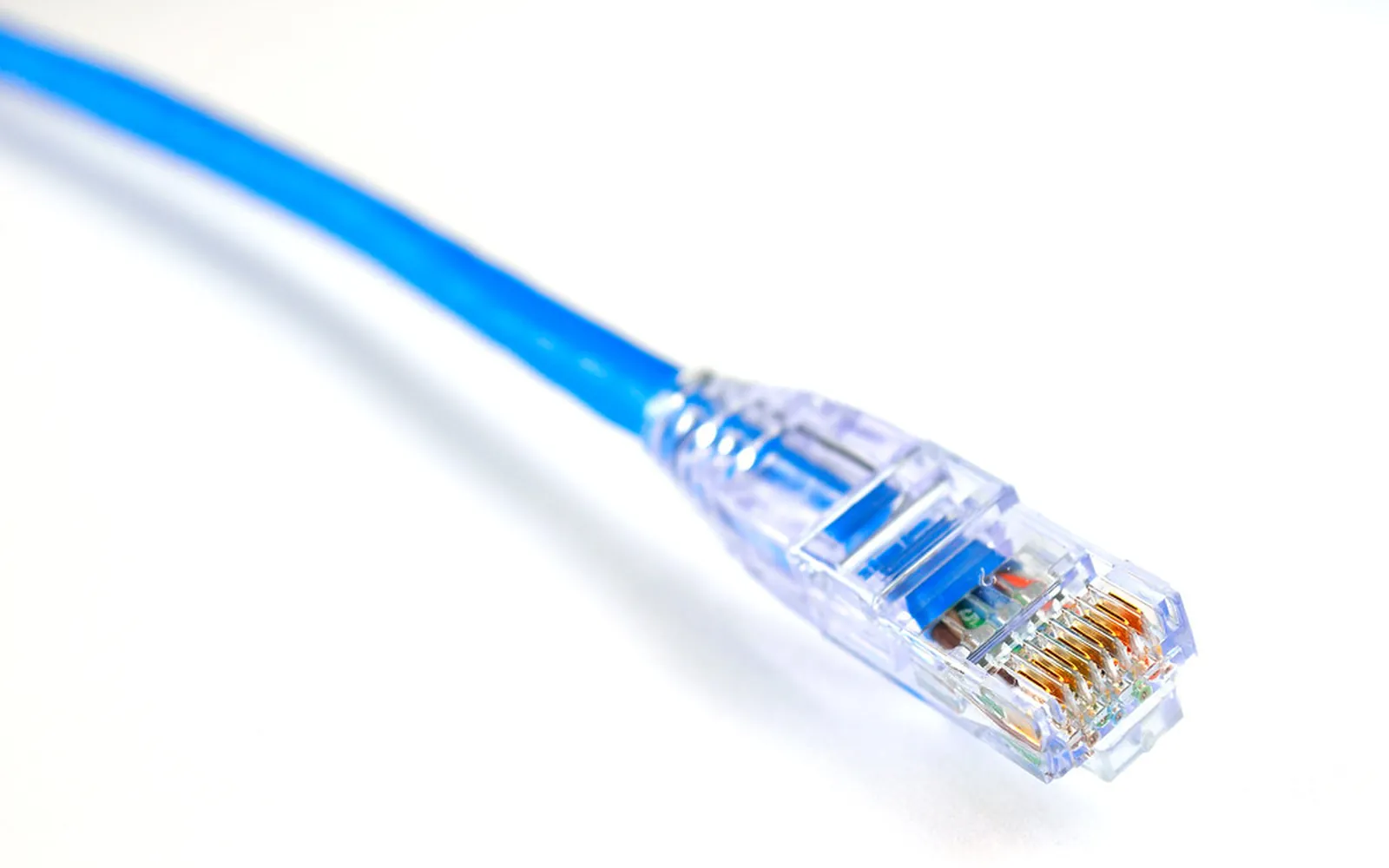
A wired connection is supposed to be the reliable option, so it is especially annoying when the network icon shows a cable but Windows says no internet. When Ethernet is connected but there is no internet, the fault is almost always in one of three places: the cable and port, your PC’s network settings, or the router and internet service. This guide checks each in turn, quickest first.
This is an independent guide for Windows 11; Windows 10 steps are very similar.
1. Check whether it is just this PC
Try the internet on another device, such as a phone on Wi-Fi.
- Nothing works anywhere: the router, modem or provider is the problem. Go to step 3.
- Other devices work: the problem is the cable, port or this PC. Start at step 2.
2. Check the cable, port and lights
- Push the cable in at both ends until it clicks. A broken latch lets the plug sit loose.
- Look at the small lights next to the port on the PC and on the router. No light usually means no physical link.
- Swap to a different port on the router.
- Try a different cable. Cables fail, especially when bent sharply, stepped on or run under doors.
- If you use a USB Ethernet adapter or a dock, plug it directly into the PC, try another USB port, or test the PC’s built-in port if it has one.
In Settings > Network & internet > Ethernet, check Link speed. A speed of 100 Mbps on a gigabit network often points to a damaged cable.
3. Restart the modem and router
- Unplug the power from both the modem and the router.
- Wait 30 seconds.
- Plug in the modem first and wait until its lights settle, usually one to two minutes.
- Plug in the router and wait another minute or two.
If you have a network switch between the PC and router, restart that too. Our guide to restarting a router correctly explains what the lights mean.
4. Renew the IP address and flush DNS
- Right-click Start and choose Terminal (Admin).
- Run these commands, pressing Enter after each:
ipconfig /release
ipconfig /renew
ipconfig /flushdns- Then run
ipconfigand look at IPv4 Address under your Ethernet adapter.
If the address starts with 169.254, or /renew times out, the PC is not getting an address from the router. Restart the router again and make sure its DHCP server is on; see self-assigned IP or limited connectivity. If you need to look at router settings, see how to log in to your router.
5. Restart and update the Ethernet adapter
- Right-click Start and open Device Manager.
- Expand Network adapters and find the Ethernet adapter (often named Realtek, Intel or similar, with “Ethernet” or “GbE”).
- Right-click it, choose Disable device, wait ten seconds, then Enable device.
- If it shows a warning sign, choose Update driver. If the problem began after an update, choose Properties > Driver > Roll Back Driver.
You can also get the latest network driver from your PC or motherboard maker’s support site. See update device drivers safely.
6. Check VPN, proxy and DNS settings
- Disconnect any VPN app and test again.
- In Settings > Network & internet > Proxy, make sure Use a proxy server is off unless your workplace set it.
- If websites fail but the connection otherwise looks fine, try a different DNS server: Settings > Network & internet > Ethernet > DNS server assignment > Edit. Our DNS guide explains the options.
7. Reset the network in Windows
- Go to Settings > Network & internet > Advanced network settings > Network reset.
- Select Reset now, confirm, and let the PC restart.
This reinstalls network adapters and resets settings to default. It does not touch your files, but VPN software may need reinstalling. See reset network settings in Windows.
8. Command-line reset (advanced)
If the network reset did not help, in Terminal (Admin) run:
netsh winsock reset
netsh int ip reset
Then restart the PC.
Switches, docks and powerline adapters
Extra equipment between the PC and the router adds more places for the connection to fail.
- Network switch: unplug its power for 30 seconds and plug it back in. Connect the PC directly to the router to see whether the switch is the problem.
- Laptop dock or USB Ethernet adapter: update the dock’s firmware and driver from its maker’s website, and try the adapter in another USB port.
- Powerline adapters (network over electrical wiring): plug them directly into wall outlets, not power strips, and press their pairing buttons again if the link light is off.
- Wall ports: if your home has Ethernet sockets in the walls, the cable inside may be disconnected at the other end. Test with a cable straight to the router.
When it is hardware
If another device works with the same cable and port, but your PC does not after all the steps above, the PC’s network port may be faulty. A USB Ethernet adapter is an inexpensive workaround. If no device works on any port of the router, while Wi-Fi also fails, contact your internet provider; check their outage page first.
Related guides
If Wi-Fi shows a similar message, see “No Internet, Secured” on Windows and Wi-Fi connected but no internet. To check whether your connection is as fast as it should be, see test your internet speed. Browse more in the Wi-Fi and internet section.
Frequently asked questions
Why does Ethernet say connected but no internet?
Windows can see a working link to the router or switch, but no internet traffic gets through. Typical causes are a router or modem problem, an IP address issue, a DNS failure, VPN or proxy settings, or a faulty cable.
What does Ethernet doesn't have a valid IP configuration mean?
The PC did not receive an address from the router. Restart the router, run ipconfig /release and ipconfig /renew, and make sure the router's DHCP is enabled. A bad cable or port can also cause it.
How do I know if my Ethernet cable is bad?
Try a different cable, or connect another device with the same cable. If the link lights stay off or the connection drops when you move the cable, the cable or connector is faulty.
Why is my Ethernet connection only 100 Mbps?
A damaged cable, an old cable type, or a port that only supports 100 Mbps can limit the speed. In Settings > Network & internet > Ethernet, check Link speed, and try a newer Cat 5e or Cat 6 cable.
Sources
Free Tech Support Editorial Team
Editorial team
The Free Tech Support editors write and update these guides from the official documentation of Microsoft, Apple, Google and device makers. We are an independent site with no phone line and no paid support service.