Security & Scams
Secure Your Home Wi-Fi Network
Written by Free Tech Support Editorial Team · Updated
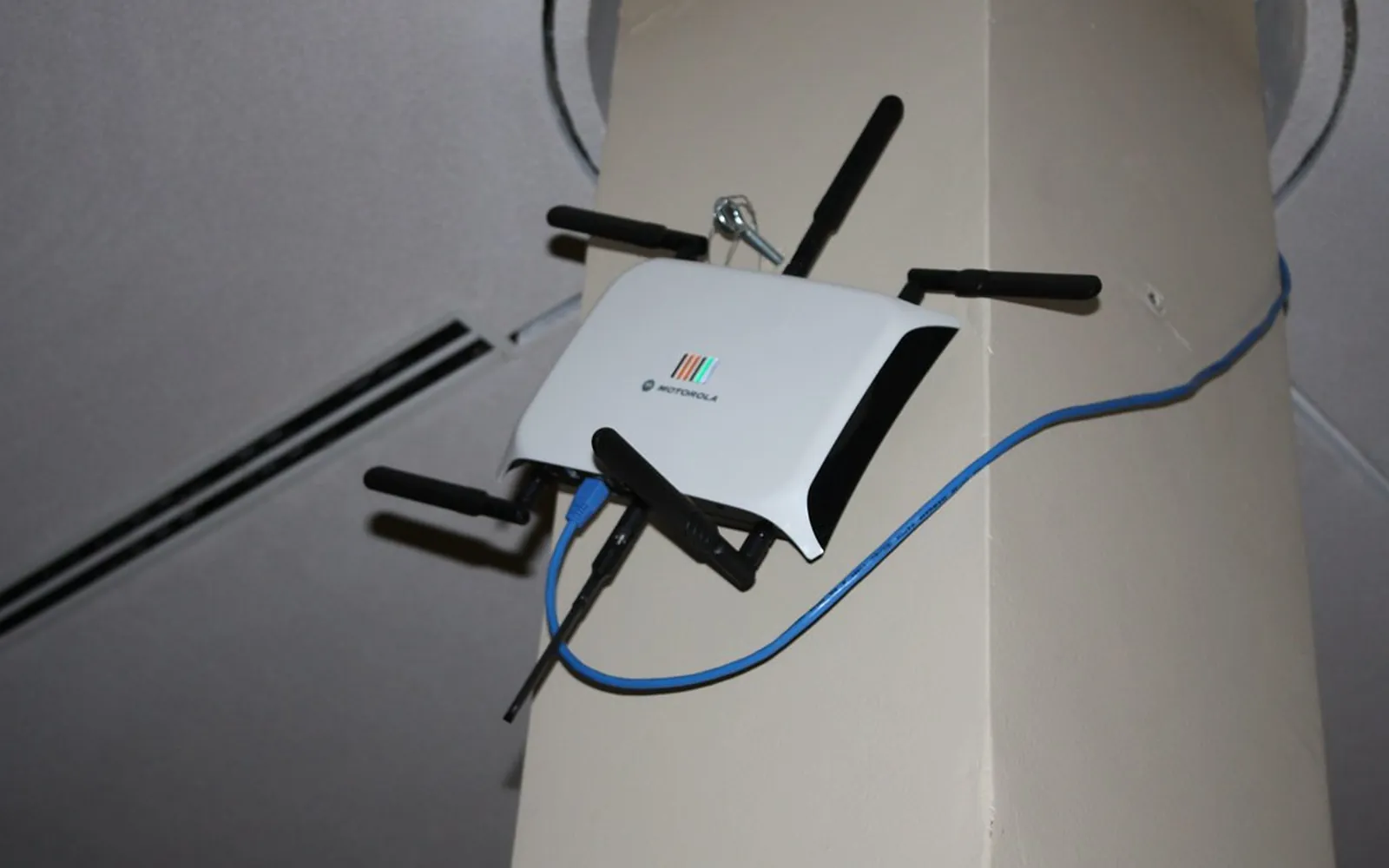
Your home router is the gateway for every device connected to your internet — phones, laptops, smart TVs, and more. Taking a few minutes to secure it properly means you’re protecting everything at once.
Step 1: Log In to Your Router
Most home routers are accessed through your browser. Type 192.168.1.1 or 192.168.0.1 into your browser’s address bar (not the search bar). If neither works, check the label on the back of your router — the address is often printed there, along with the default login details.
Step 2: Change the Admin Password
The default admin password (often something like “admin” or “password”) is publicly known for most router models. Find the setting for Administration or Router password and change it to something strong and unique. Write it down and keep it somewhere safe.
Step 3: Use WPA3 or WPA2 Encryption
Look for Wireless settings or Wi-Fi security in your router settings. Set the security type to WPA3 if available, or WPA2 if not. Never use WEP or “None” — these offer no meaningful protection.
Step 4: Set a Strong Wi-Fi Password
While you’re in the wireless settings, change your Wi-Fi password (the one you share with guests and enter on devices). Use at least 12 characters — a passphrase works well here too.
Step 5: Update Your Router’s Firmware
Manufacturers release firmware updates that fix security vulnerabilities. Look for a Firmware update or Software update option in your router settings and check for updates. Some newer routers do this automatically.
Step 6: Turn Off Features You Don’t Use
- WPS (Wi-Fi Protected Setup) — a convenience feature with a known security flaw. Disable it if you don’t use it.
- Remote management — unless you specifically need to access your router from outside your home, turn this off.
- UPnP — useful for gaming and streaming but can be exploited. Disable it if you don’t need it.
Step 7: Set Up a Guest Network
If your router supports it, enable a Guest network for visitors and smart home devices. This keeps them separate from your main devices (computers, phones) and limits how much damage a compromised device can cause.
Don’t share your main Wi-Fi password widely. Set up a guest network for visitors — that way you can change the guest password without disrupting your own devices.
Related guides
If this did not solve it, these guides cover the problems that most often come with it: Create Strong Passwords and Use a Password Manager, Signs Your Computer May Be Hacked, How to Change Your Wi-Fi Name and Password. You can also browse every guide in the security section.
Frequently asked questions
How do I know if someone unauthorised is using my Wi-Fi?
Log into your router and look for a section called Connected devices or DHCP clients list. This shows every device currently on your network. If you see something you don't recognise, change your Wi-Fi password — all devices will need to reconnect with the new one. Enable WPA2 or WPA3 if it isn't already set.
My router is old. Does that matter?
Older routers may no longer receive firmware updates, which means known security vulnerabilities go unpatched. If your router is more than 5-6 years old, it's worth asking your internet service provider if they offer a free upgrade, or replacing it. ISP-supplied routers are often updated automatically.
Sources
Free Tech Support Editorial Team
Editorial team
The Free Tech Support editors write and update these guides from the official documentation of Microsoft, Apple, Google and device makers. We are an independent site with no phone line and no paid support service.